

Last Updated on November 2, 2026 by Larious
Windows 11 allows you to use multiple email accounts on your PC, and you can manage all emails from a single place. Hence, if you are interested in adding multiple email accounts on your Windows 11 PC, here’s what you should do.
Table of Contents
1. Add Multiple Email Accounts on Windows 11
To add multiple email accounts on Windows 11, you must follow some of the simple steps we have shared below.
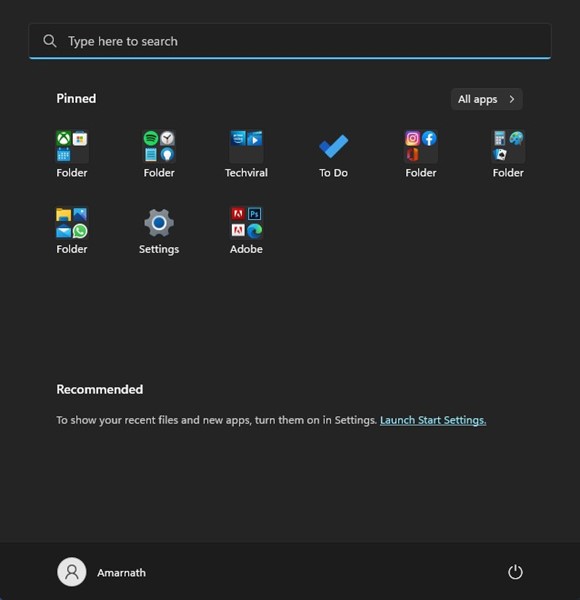
1. Click on the Windows 11 Start menu and click on Settings.
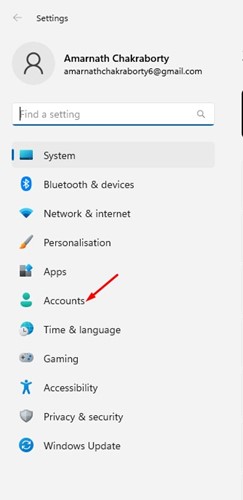
2. In the Settings app, switch to the Accounts tab.
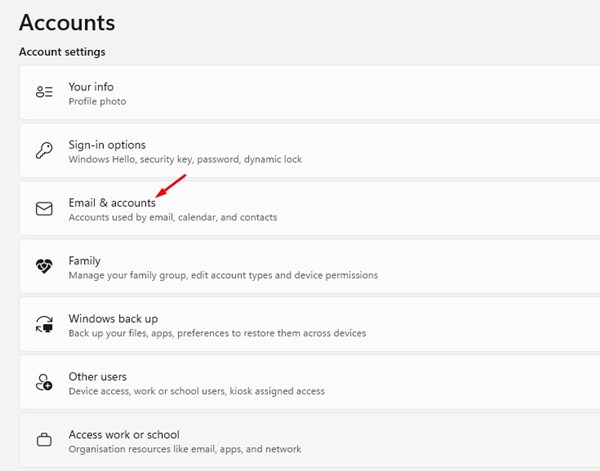
3. On the right side, scroll down and click Email & accounts.
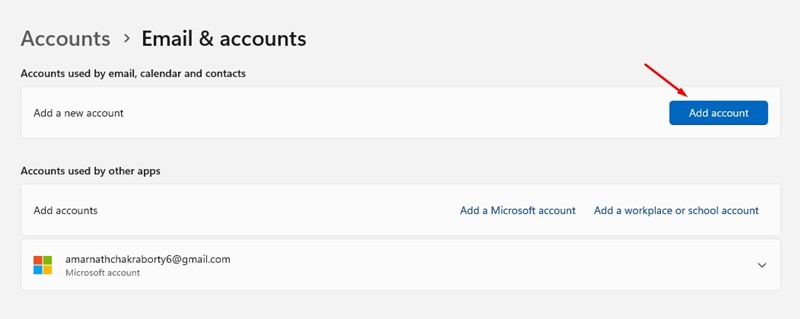
4. On the Email & accounts screen, click on Add account.
5. You will be asked to select the type of account you want to add. For example, if you’re going to add a Google account, choose Google.
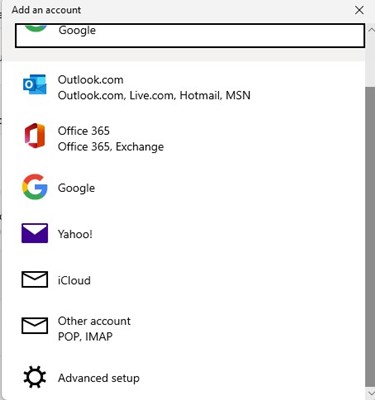
6. On the Sign in with Google prompt, enter the credentials for the Google Account you want to add.
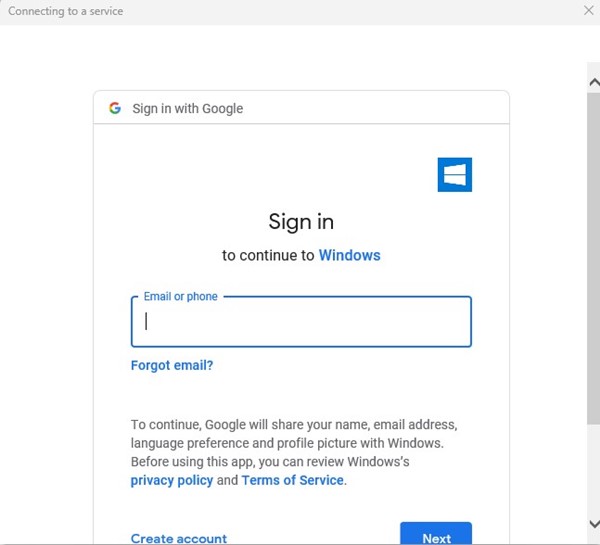
7. Follow the on-screen instructions to complete the account addition process.
2. How to Remove Email Accounts?
If you ever wish to remove an email account from your Windows 11 PC, you must follow these simple steps.
1. Click on the Windows 11 Start button and select Settings.
2. In the Settings app, switch to the Account tab on the left.
3. Scroll down and click on Email & accounts.
4. Expand the account you want to remove and click on Manage.
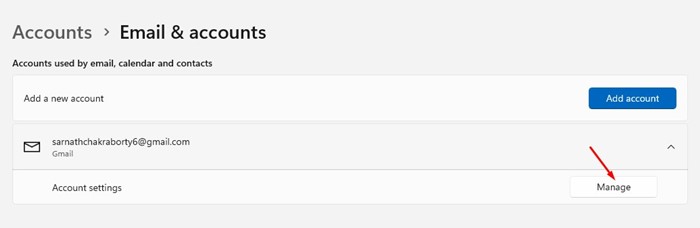
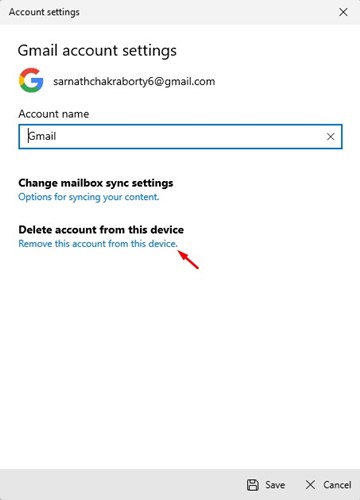
5. On the Account Settings wizard, click on the Remove this account from this device link.
Also read: How to Connect & Manage Multiple Email Accounts in Gmail
This is how you can add and use multiple email accounts on your Windows 11 PC. If you need more help adding email accounts to Windows 11, let us know in the comments below.

