

Last Updated on November 2, 2026 by Larious
When you connect your Windows 11 PC to WiFi, Windows 11 automatically creates a new profile for the WiFi network and saves it. The profile that Windows 11 creates for the WiFi network includes the SSID, Password, and other information about the WiFi network. Therefore, if you forget the password of a WiFi network you’ve connected to, you can easily retrieve it. Likewise, it’s pretty easy to view the password of the currently connected WiFi network on Windows 11.
If you are looking for ways to view WiFi passwords in Windows 11, here’s what you should do.
Steps to View WiFi Password in Windows 11
In this method, we will use the Network & Internet option to view the password of the currently connected WiFi network.
1. Click on the Windows Start menu and select Settings.
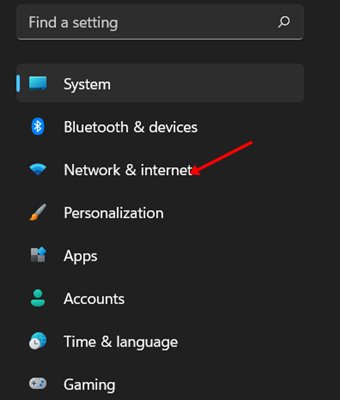
2. Click on the Network & Internet option.
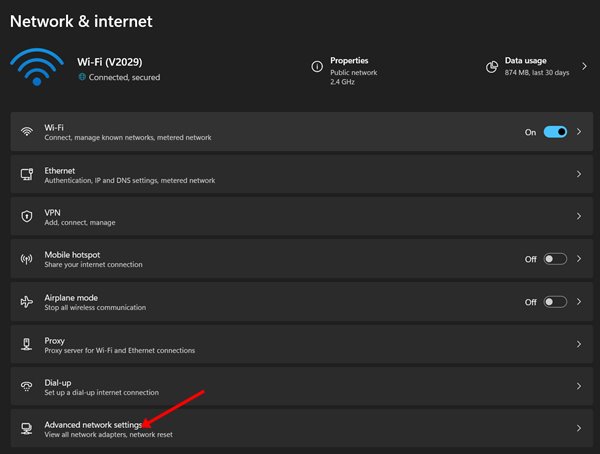
3. Click on the Advanced network settings option in the right pane.
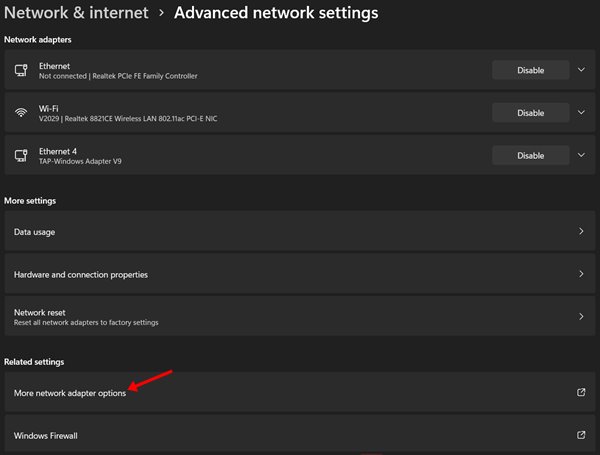
4. In Advanced network settings, click on More network adapter options under Related Settings.
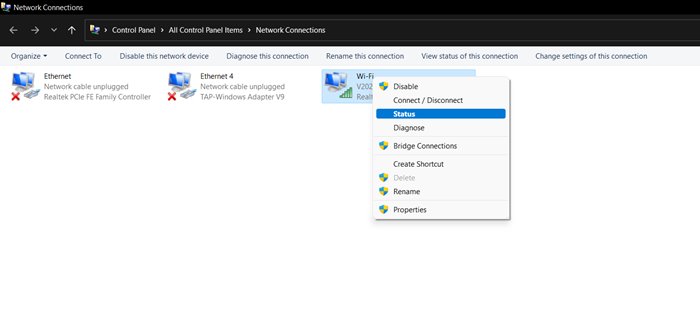
5. This will open the Network Connections option. Right-click on the WiFi icon and select Status.
6. On the WiFi Status, click on Wireless Properties.

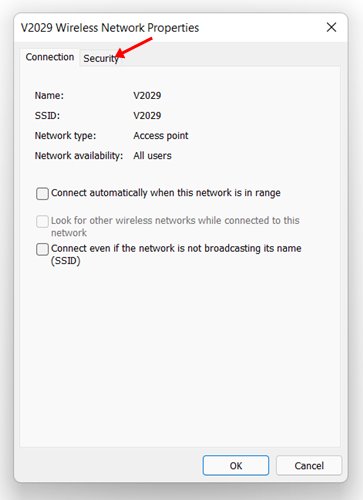
7. In the Wireless Network Properties option, click on the Security tab.
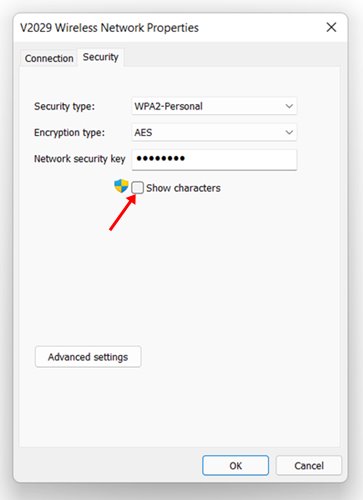
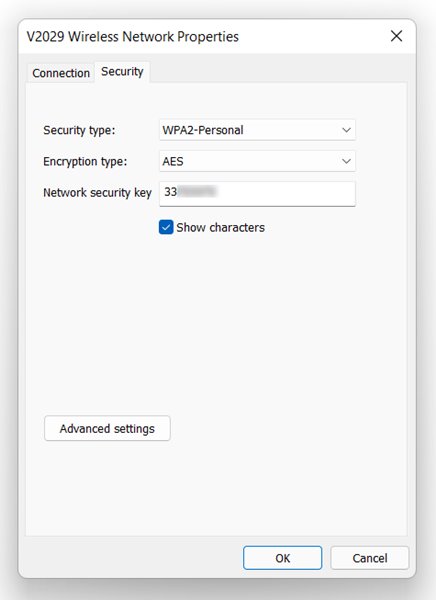
8. On the Network security key, check the Show characters option.
This is how you can see WiFi Passwords in Windows 11.
You can easily view WiFi passwords on Windows 11 by following the steps mentioned above. I hope this article helped you! Please share it with your friends also. I hope this article helped you! Please share it with your friends also.

