

Last Updated on November 1, 2026 by Larious
Hardware Accelerated GPU Scheduling is meant to improve the GPU scheduling process. If you enable it, you can expect better performance from apps that rely on your graphics card.
With this feature enabled, specific programs/games that use the GPU will perform better. So, if you are looking for ways to enable the Hardware-Accelerated GPU Scheduling feature, here’s what you should do.
Steps to Enable Hardware-Accelerated GPU Scheduling in Windows 11
Important: Before you enable this feature, make sure to update the operating system and the graphics drivers of your PC.
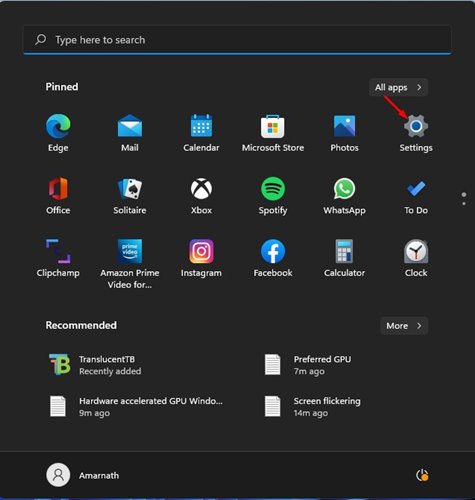
1. Click on the Windows 11 Start button and select Settings.
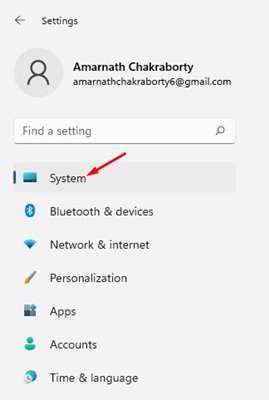
2. On the Settings page, click on the System section.
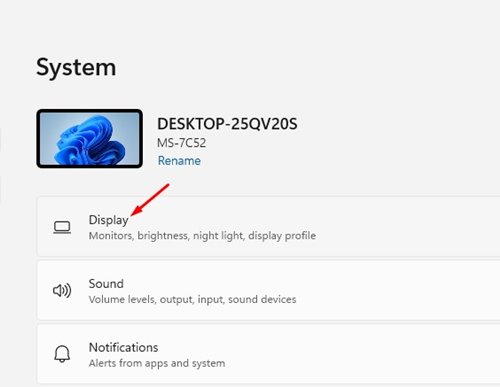
3. On the right pane, click on the Display option.
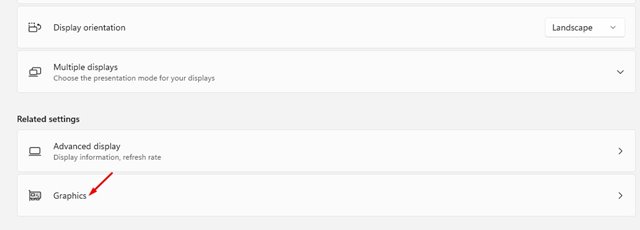
4. Scroll down and click on the Graphics option under the Related settings.
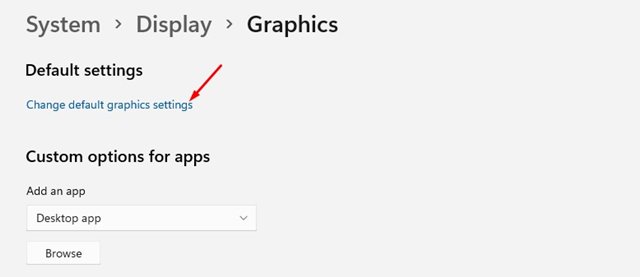
5. Under Graphics, click on the Change default graphics settings link under the Default Settings.
6. On the next screen, toggle on the switch behind Hardware-Accelerated GPU Scheduling. Then, on the confirmation prompt, click on the Yes button.
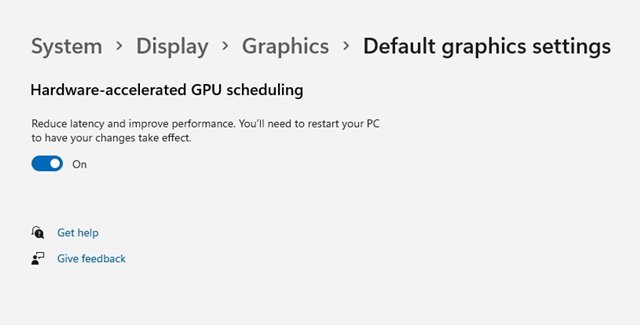
Make sure to restart your computer to apply the changes.
Enabling hardware-accelerated GPU scheduling is pretty easy on Windows 11. If you are not satisfied with the feature, you can disable it by reverting the changes you have made. I hope this article helped you! Please share it with your friends as well. If you have any doubts related to this, let us know in the comment box below.

