

Last Updated on October 10, 2026 by Larious
Apart from regular BSODs, green screen errors, and driver compatibility issues, Windows 11 users can face problems while deleting files from the device. Files not deleting on Windows 11 is nothing new; it’s a very basic problem that can be easily fixed.
Below, we have shared a few of the best methods to delete undeletable files on a Windows 11 PC.
Table of Contents
1. Delete Undeletable files on Windows 11 via Task Manager
Task Manager doesn’t allow you to delete a file, but you can use it to detect the lock. One of the most common reasons you’re unable to delete a file is because the file is in use by another application.
For example, if you are editing an image in Adobe Photoshop and trying to delete that file, you will receive an error message that reads File in use.
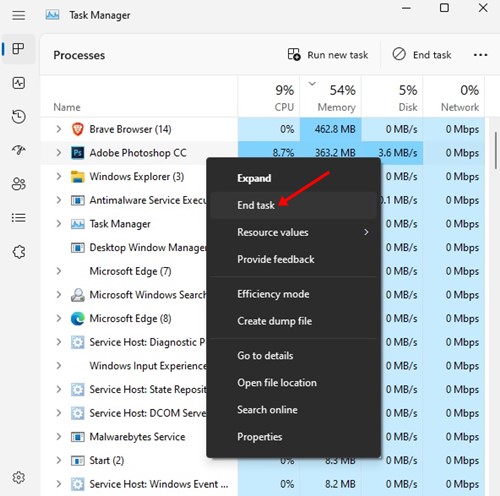
Therefore, if you cannot delete files on Windows 11, you need to open Task Manager and close the application preventing the file from being deleted. Right-click on the app to close a program via Task Manager and select End Task.
2. Delete Undeletable Files on Windows 11 via Command Prompt
If you are still unable to delete a file, you need to utilize the Windows 11 Command Prompt. Here’s how to delete undeletable files on Windows 11 via Command Prompt.
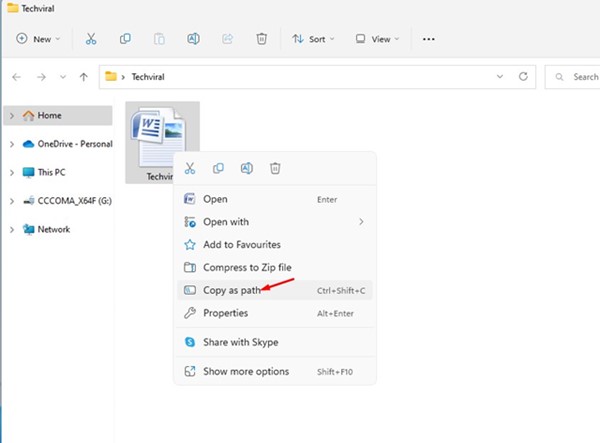
1. Right-click on the File you want to delete and select Copy as Path.
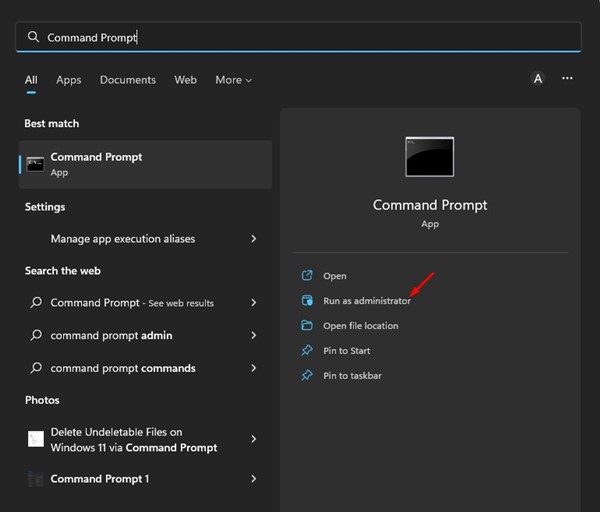
2. Click on the Windows 11 search and type Command Prompt. Right-click on Command Prompt and select Run as administrator.
3. In Command Prompt, type del followed by a space and press the CTRL+V button. This will paste the file path you copied before.
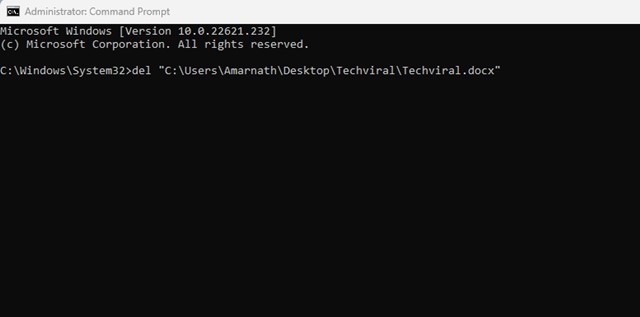
4. Any application or process that does not use the file will be deleted immediately.
3. Delete Undeletable Files in Windows 11 via Safe Mode
If the Command Prompt method didn’t work for you, there’s possibly malware or delete lock preventing the file from being deleted. Hence, you need to boot into Safe Mode and delete the file. Safe Mode disables all processes and loads the basic set of drivers.
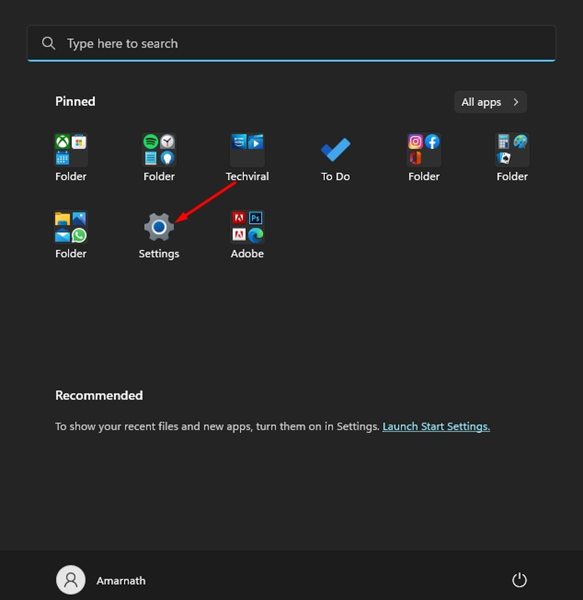
1. Click on the Windows 11 Start button and select Settings.
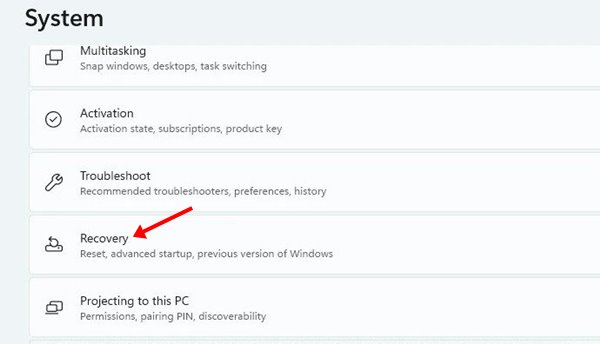
2. In the Settings app, click on the System tab. On the right, scroll down and click Recovery.
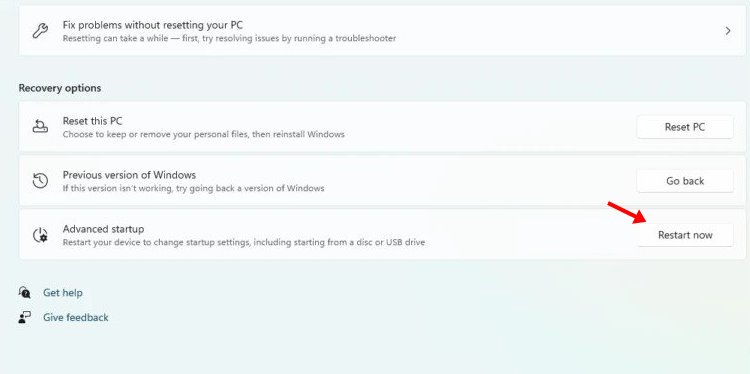
3. Now scroll down to the Recovery options section. Click on the Restart now button beside Advanced startup.
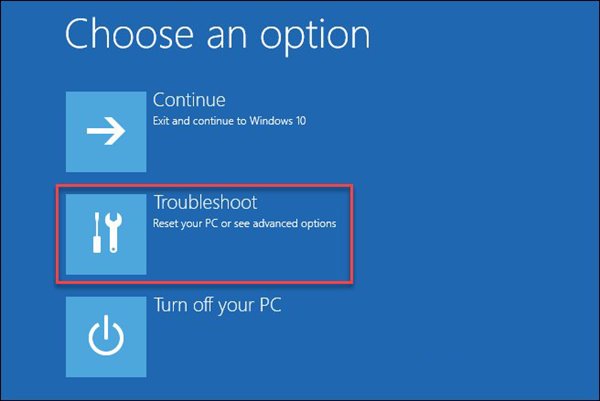
4. On the confirmation prompt, click on the Restart now button. After the restart, your PC will boot into the Windows Recovery Environment. You need to click on Troubleshoot.
5. In Troubleshoot, click on Advanced Options > Startup Settings.
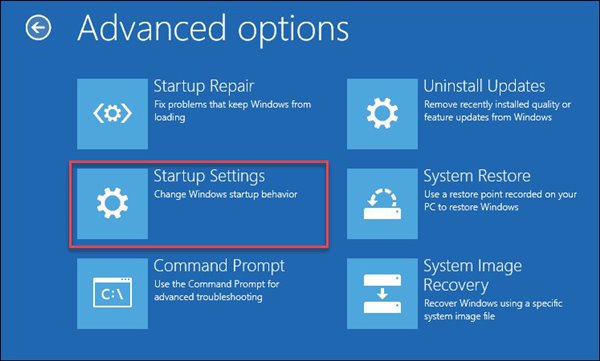
6. In Startup Settings, click Restart.
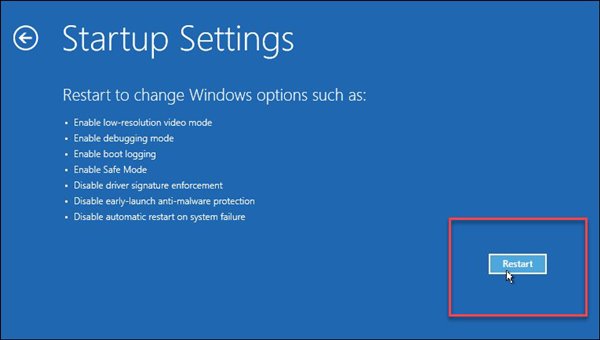
7. You will see various startup options. You must press 4 or F4 to boot Windows 11 in Safe Mode. You can press 5 or F5 and 6 or F6 to Boot into Safe Mode with Networking or Command Prompt.

8. When Windows 11 reboots in Safe Mode, find and delete the file.
4. Use third-party software to delete undeletable files
If you are still unable to delete certain files on Windows 11, it’s best to use third-party software.
We have already shared a list of the best tools to delete undeletable files on Windows. You can use any app to remove the lock handle and delete the files.
These are some of the best ways to delete undeletable files on a Windows 11 computer. If you need any more help deleting files on Windows 11, let us know in the comments below.

