

Last Updated on June 16, 2025 by Larious
With the growing trend of mobile photography, our photo collections can get messy fast. The Google Photos app is a go-to choice for Android users to store and organize their photos/videos.
However, if you’re someone who takes lots of pictures, managing your Google Photos Library could become a challenge. To make Photo Management easier, Google Photos now offers you a helpful new feature.
Table of Contents
Hide Clutter from other apps
Google Photos now offers you set of features to declutter your photo library. You can now hide memes, screenshots, and other unnecessary things from the main view.
It even lets you manage photo appearance app-by-app, giving you full control over what stays visible and what’s hidden from plain sight.
How to Hide Content from Other Apps on Google Photos
Google Photos’ new Photos view preference lets you hide content from other apps, only show the backed-up content, hide clutter from other apps, or change the photo settings for individual apps.
If you want to have these features, you will have to update the Google Photos app from the Google Play Store. Once updated, follow these steps.
1. Open the Google Photos app on your Android phone.
2. Tap your profile picture in the top right corner.
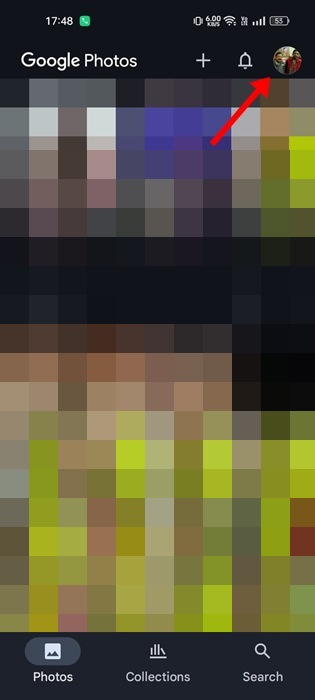
3. Navigate to the Photo Settings > Preferences > Photo View.
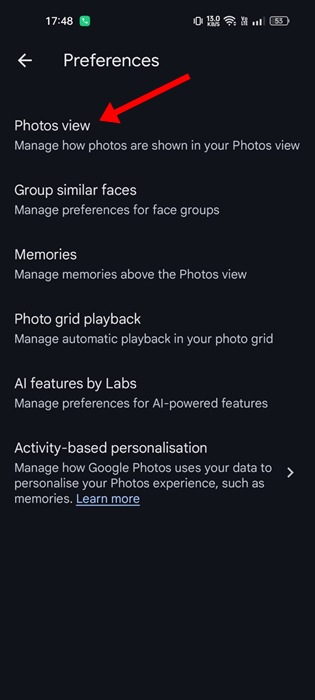
4. You will find various options in the Photo Views.
5. If you want to automatically group similar photos, enable the Stack Similar photos. If you don’t wish to see content from other apps, disable the toggle for ‘Show content from other apps’.
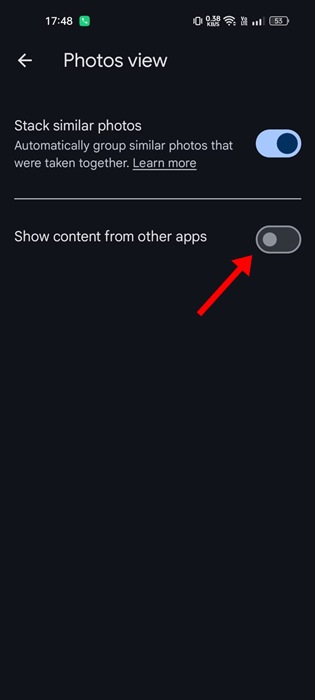
6. If you prefer, you can choose to ‘Only show backed-up content’.
7. To hide photos like screenshots, GIFs, and memes, enable the Hide clutter from other apps option.
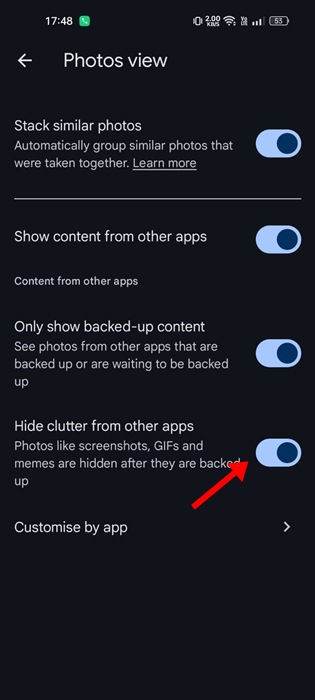
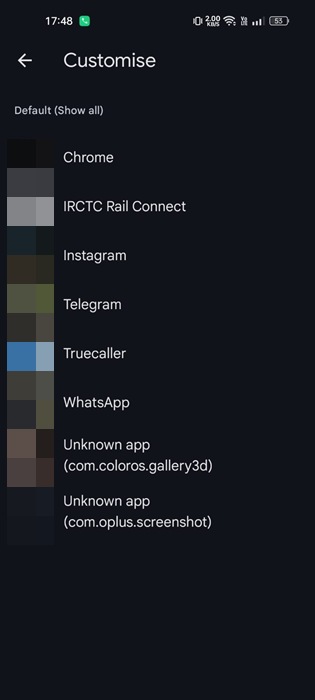
8. If you want to change the settings for individual apps, tap Customize by app and make the changes.
So, Google Photos now offers you many useful photo management features. Make sure to use these features to better organize your media files. If you need more help with this topic, let us know in the comments.

