

Last Updated on October 13, 2026 by Larious
On Windows 11, you get a password protection feature called BitLocker. BitLocker is a great security feature, but it can only password protect drives, not files or folders. Hence, if you want to password protect your folders on Windows, you need to create a batch file or utilize third-party software. Below, we have shared some working methods to password protect folders in Windows 11.
Table of Contents
1. Create a text-based locker
On Windows 11, you can create a text-based folder lock to password protect folders.
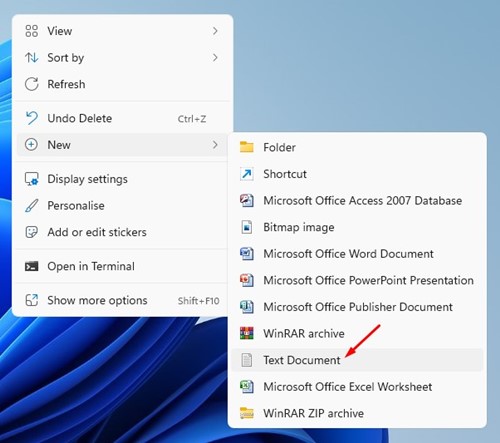
1. Open any folder, right-click on a blank space, and select New > Text Document.
2. In the text document, enter the following script:
@ECHO OFFif EXIST "Control Panel.{21EC2020-3AEA-1069-A2DD-08002B30309D}" goto UNLOCKif NOT EXIST Private goto MDPrivate:CONFIRMecho Are you sure to lock this folder? (Y/N)set/p "cho=>"if %cho%==Y goto LOCKif %cho%==y goto LOCKif %cho%==n goto ENDif %cho%==N goto ENDecho Invalid choice.goto CONFIRM:LOCKren Private "Control Panel.{21EC2020-3AEA-1069-A2DD-08002B30309D}"attrib +h +s "Control Panel.{21EC2020-3AEA-1069-A2DD-08002B30309D}"echo Folder lockedgoto End:UNLOCKecho Enter password to Unlock Your Secure Folderset/p "pass=>"if NOT %pass%==your_password goto FAILattrib -h -s "Control Panel.{21EC2020-3AEA-1069-A2DD-08002B30309D}"ren "Control Panel.{21EC2020-3AEA-1069-A2DD-08002B30309D}" Privateecho Folder Unlocked successfullygoto End:FAILecho Invalid passwordgoto end:MDPrivatemd Privateecho Private created successfullygoto End:End
Important: Replace the your_password in the line “if NOT %pass%==your_password goto FAIL” with the password you want to set.
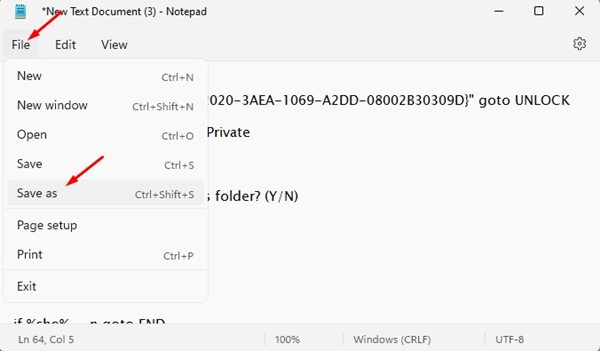
3. Once done, click on the File button and select Save As
4. On the Save as type, select All files. In the File name, type whatever you want. Here we have named our file TechviralLocker.bat.
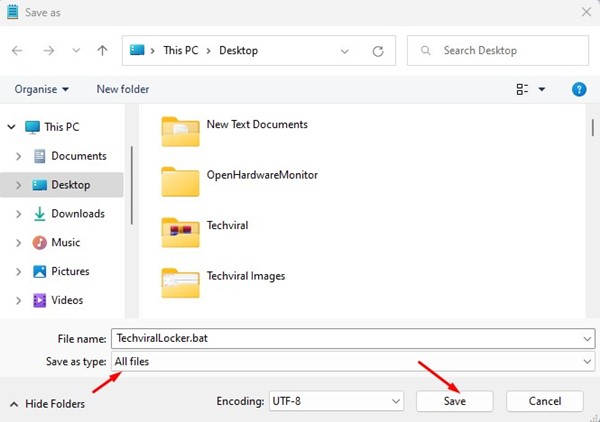
Important: You can name the file whatever you want, but include the .bat extension at the end.
5. Now, you will find the new BAT file. Double-click on the BAT file you have created to create a folder locker. Now you will find a folder named TechviralLocker.
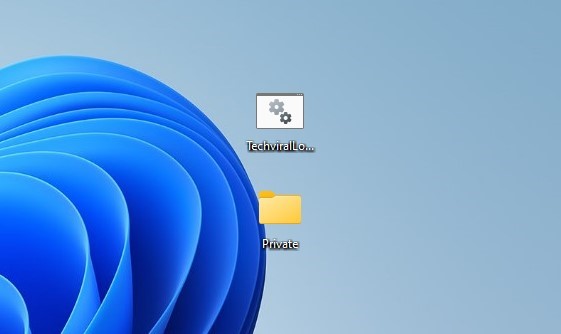
6. You can place your important files in this folder. Once done, double-click on the BAT file again. The Command Prompt will ask whether you want to lock your folder. Type Y and press the Enter button.
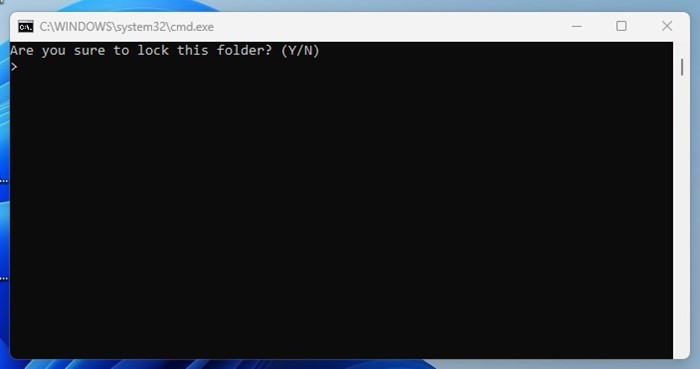
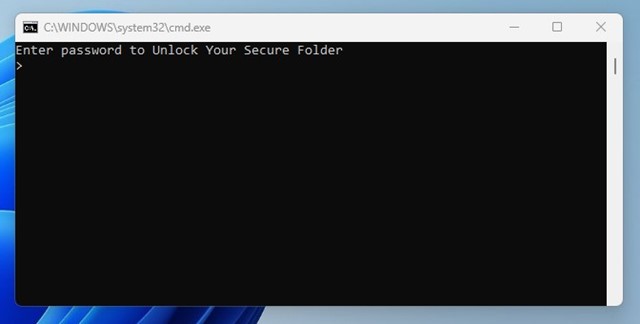
7. The folder where you have stored your important file will disappear. To bring back the folder, double-click the BAT file and enter your password. This will bring back the folder again.
. Password Protect Folders using WinRAR
You can even use the popular file compressor tool WinRAR to password protect your folders.
1. Download & install WinRAR on your Windows 11 computer.
2. Now navigate to the folder which you want to lock. Right-click on the folder and select Show More Options > Add to Archive

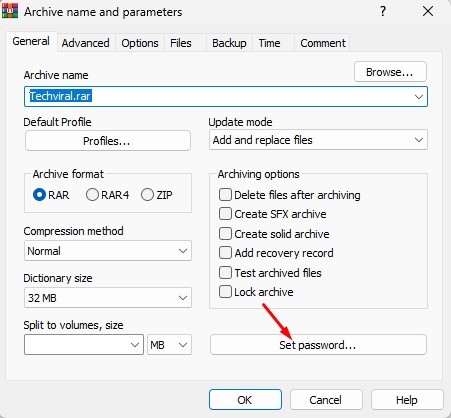
3. On the Archive window, click on Set password.
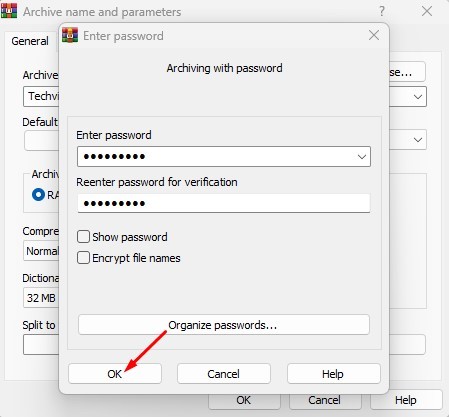
4. You need to enter and re-enter the password you want to use. Once done, click OK.
5. On the main window, click on the Ok button.
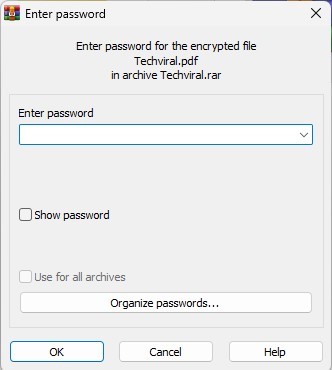
6. You will find a RAR file named the same as your original folder. After having the RAR file, you need to delete your original folder. Now, whenever anyone tries to extract the RAR file, they will need to enter the password.
3. Hide Files, Folders & Drives in Windows 11
Windows 11 even allows you to hide files, folders & drives in easy steps. Hiding is very different from locking. Hiding prevents your folders from appearing in the location where they’re saved.
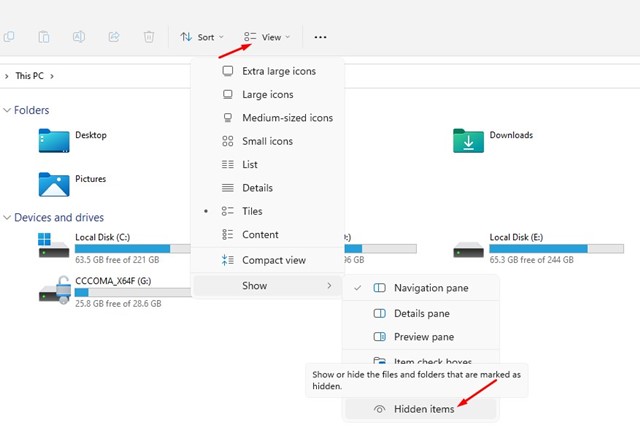
However, hiding could be the best option if you don’t want to rely on third-party tools or scripts to lock your folders. We have shared a detailed guide on hiding files, folders & drives in Windows 11. Make sure to go through that guide to explore the steps.
4. Use a third-party folder Locker for Windows
There are many free and paid folder lockers available for the Windows operating system. Most folder locker tools are compatible with the new Windows 11 and can help you password-protect any folder.
You can use them to password protect any files or folders stored on your HDD/SSD. However, the problem with third-party folder lockers is that they often try to install adware on your system. So, make sure to grab folder lockers for Windows from trustworthy sources.
These are a few of the best ways to password protect folders in the latest Windows 11 operating system. If you know any other ways to password protect folders, let us know in the comments below.

