

Last Updated on October 13, 2026 by Larious
On Windows 11, the Mouse Pointer Shadow is disabled by default, but you can enable it manually via Settings. If you want to enable the Mouse Pointer Shadow in Windows 11, follow these steps.
Table of Contents
1. Enable or Disable Mouse Pointer Shadow via Control Panel
Here we will use the Control Panel utility to enable the mouse pointer shadow.
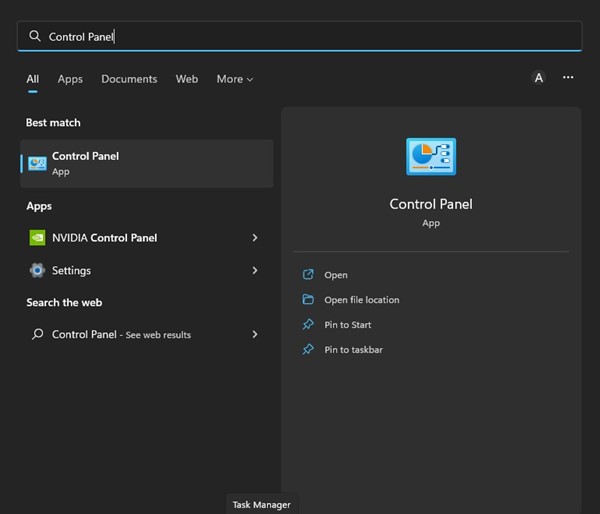
1. Open Control Panel from the Windows Search.
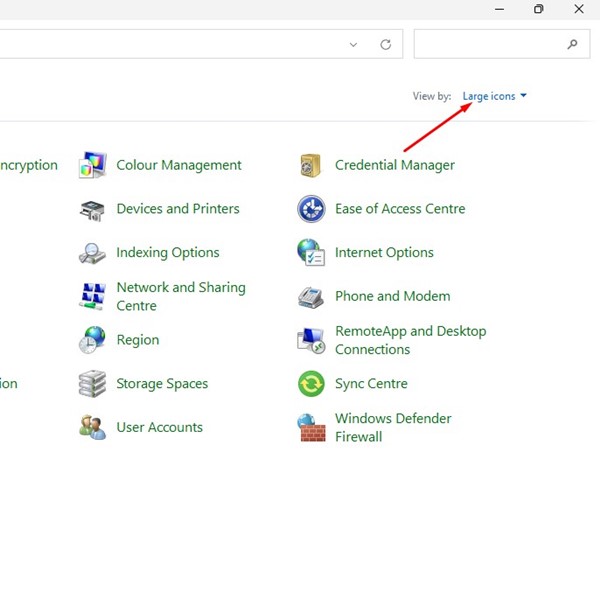
2. Click on the View by: option and select Large Icons.
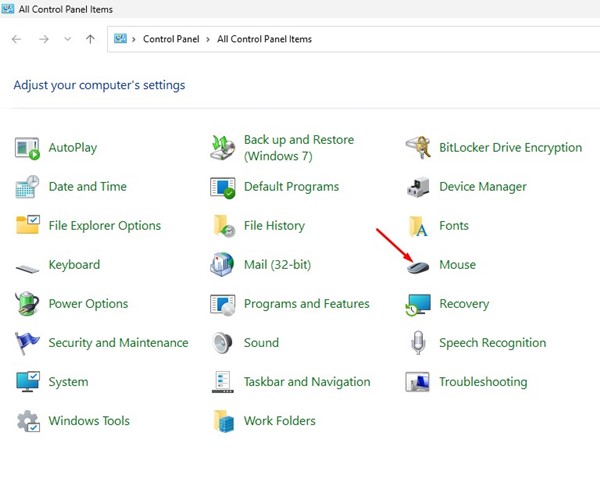
3. Click on Mouse in Control Panel.
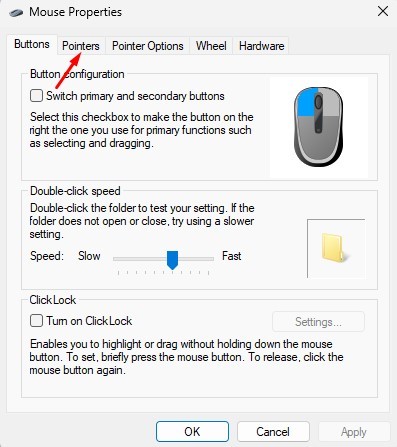
4. This will open the Mouse Properties; switch to the Pointers tab.
5. On the Pointers screen, check the option ‘Enable pointer shadow’ and click Ok.
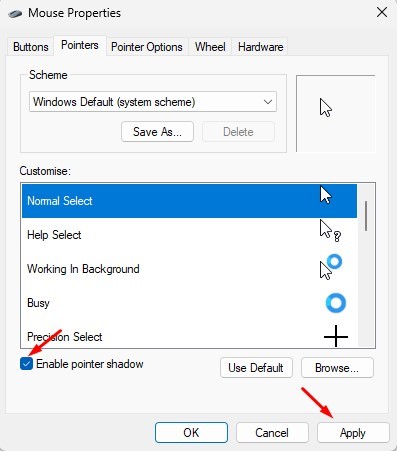
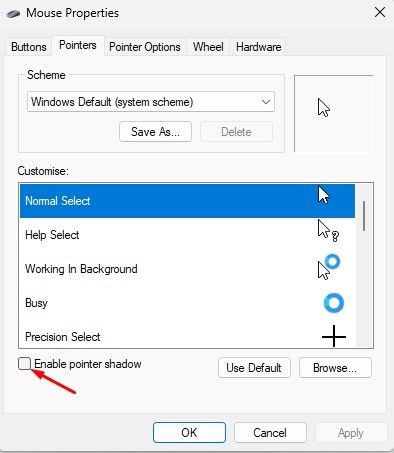
6. This will enable the pointer shadow on your Windows 11 computer. To disable the Pointer shadow, uncheck ‘Enable pointer shadow’ in Mouse Properties.
2. Enable or Disable Mouse Pointer Shadow via Settings
If you cannot access the Control Panel, you can use the Settings app to achieve the same.
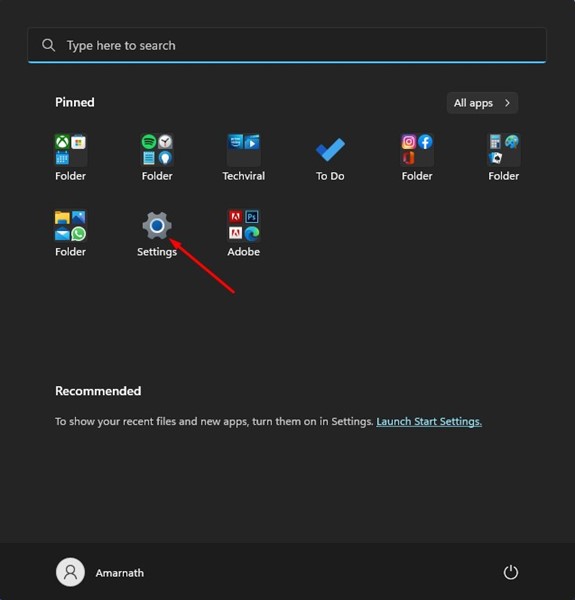
1. Click on the Windows 11 Start menu and select Settings.
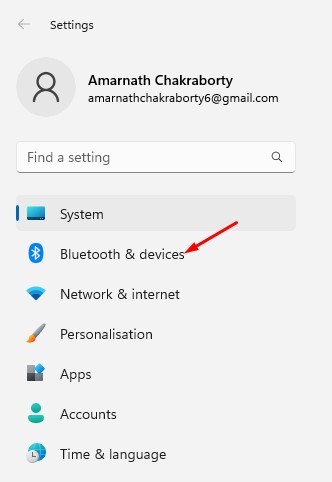
2. In the Settings app, click on the Bluetooth & devices section on the left.
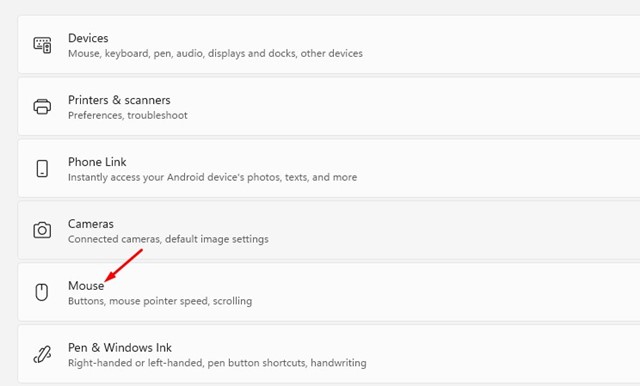
3. Scroll down and click on Mouse.
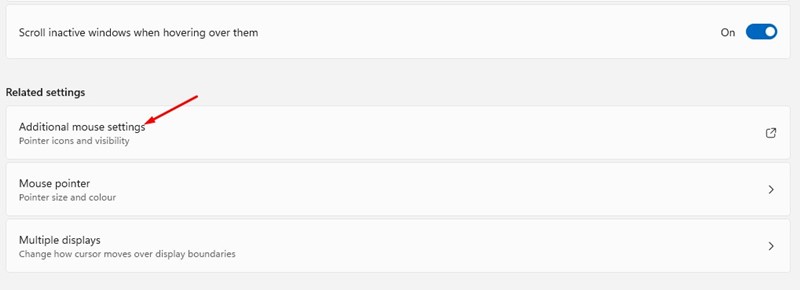
4. On the Mouse Settings screen, click on the Additional Mouse Settings.
5. This will open the Mouse Properties. Switch to the Pointers tab and check the ‘Enable pointer shadow’ option. Then click OK to enable the mouse pointer shadow.
6. If you wish to disable the pointer shadow, uncheck the ‘Enable pointer shadow’ option in the above step.
Also Read: Enable BitLocker Auto Unlock on Windows 11
These are the two best ways to enable or disable the mouse pointer shadow in Windows 11. If you need more help customizing the Mouse pointer’s appearance, let us know in the comments below.

