

Last Updated on October 13, 2026 by Larious
MSRT, or Malicious Software Removal Tool, is a security program made by Microsoft to run on the Windows operating system. The security tool is designed to run on an already infected system. This means if specific malware or dangerous software is preventing you from using the core features of Windows, you need to run this tool.
The security tool comes built into the Windows operating system and is also available as a standalone tool. You can rely on this tool to find and remove specific, prevalent threats and reverse the changes they have made.
Also read: 10 Best Free Malware Removal Tools for Windows
Use Malicious Software Removal Tool on Windows 11
If you believe your Windows 11 PC has dangerous software, you must run the MSRT tool immediately.
1. Press the Windows Key + R button on your keyboard. This will open the RUN dialog box.
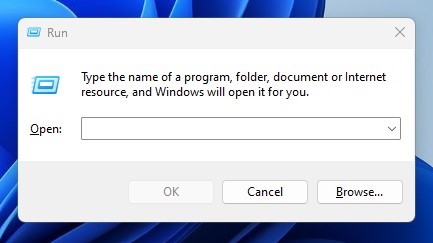
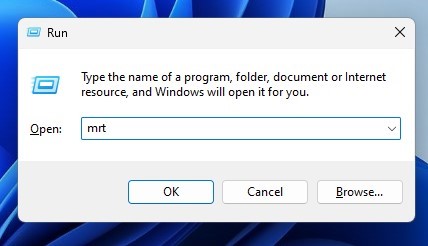
2. On the RUN dialog box, enter mrt and hit the Enter button.
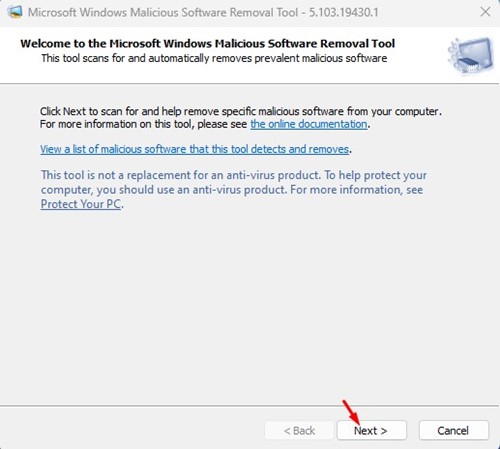
3. This will immediately open the Windows Malicious Software Removal Tool. Simply click on the Next button.
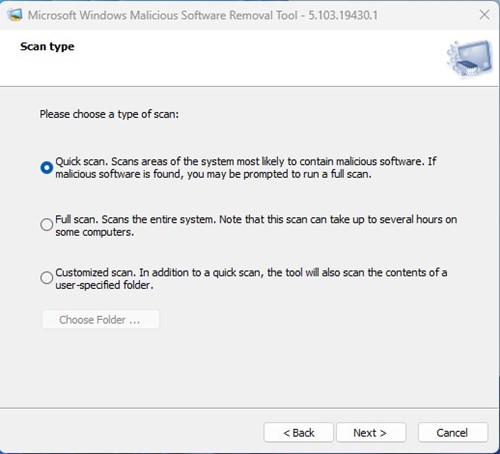
4. Select the type of scan you want to run. There are three scan options – Quick, Full, and Customized. It’s recommended to run the Full Scan if your PC is infected with malware.
5. The Microsoft Windows Malicious Software Removal Tool will run the scan.
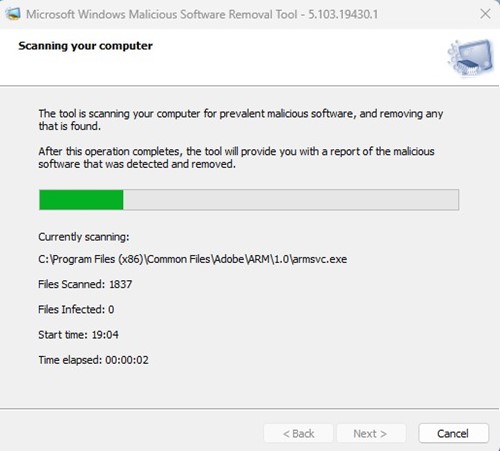
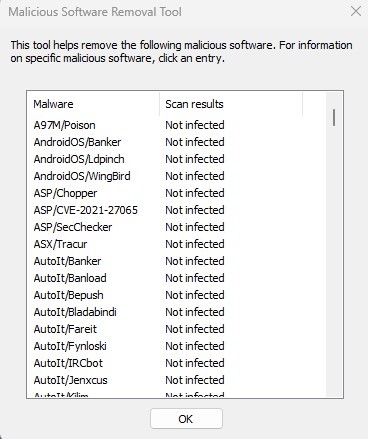
6. Once completed, click on the View detailed results of the scan link.

7. You can also view the scan log file from the location: C:\Windows\Debug\mrt.log
While the MSRT tool is excellent and can deal with the most dangerous malware, it’s not an actual replacement for a premium antivirus suite. For the best protection, it’s recommended to have premium antivirus software for PC such as Malwarebytes or Norton. So, this guide is all about how to remove dangerous software from your Windows PC. If you have any doubts about this, let us know in the comments below.

