

Last Updated on August 29, 2026 by Larious
Even though Windows 11 receives frequent updates, it still has many bugs and glitches. Sometimes, the Windows Taskbar just disappears and appears only after a restart. This problem has been affecting many users recently.
If you’ve been using Windows 11 and the Taskbar disappears all of a sudden often, it’s time to troubleshoot it. Here’s what you can do to fix the problem.
Table of Contents
1. Make changes to the Taskbar Alignment
In Taskbar Alignment, you get an option ‘Automatically hide the taskbar’. If this is turned on, the Taskbar will auto hide itself.
Move your cursor toward the bottom of the screen (where the taskbar appears) to bring it back. However, if you don’t want this feature, you should turn off the ‘Automatically hide the taskbar’ option.
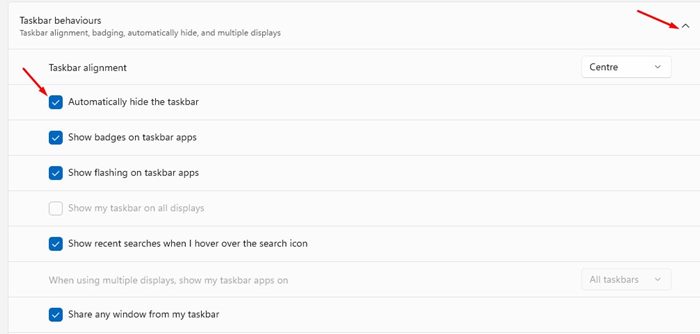
- Open the Settings app.
- Navigate to Personalization > Taskbar.
- Expand the Taskbar behaviours.
- Uncheck the ‘Automatically hide the taskbar’ option.
2. Restart Windows Explorer
If restarting Windows 11 brings back the Taskbar, try this fix. This will eliminate the need for restarting the computer to bring back the Taskbar.
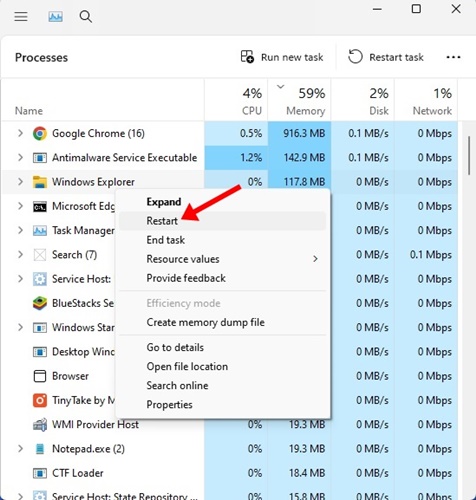
- Open the Task Manager on your PC.
- When the Task Manager opens, switch to the Processes tab.
- Find the Windows Explorer process.
- Right click on it and select Restart.
The display will go black for a second. This confirms that Windows Explorer has been restarted.
3. Run the System File Checker utility
Corrupted system files are another reason for the Taskbar not showing up on Windows 11. You can run the System File Checker utility to replace the corrupted system files.
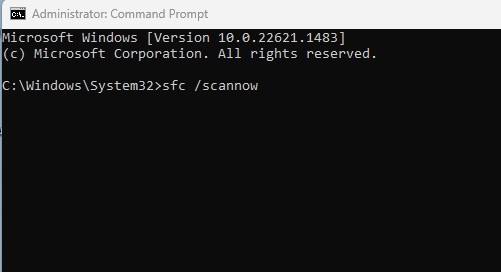
- Open Command Prompt with admin rights. (Right-click on CMD > Run as administrator).
- When the Command Prompt opens, type this command and press Enter.
sfc /scannow
The scan may take a while to complete. Make sure you don’t turn off the computer in between.
4. Run the DISM Command
If the System File Checker utility returns with an error, you need to run the DISM commands. Here’s what you need to do.
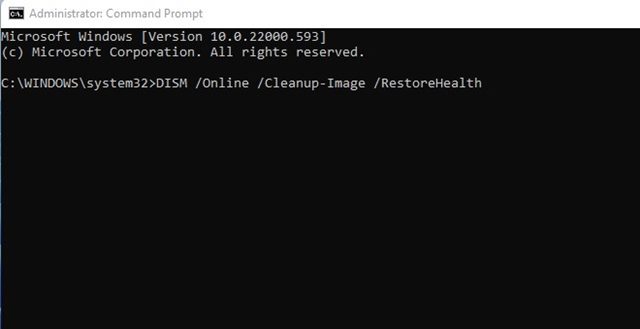
- Open Command Prompt with administrator rights.
- When the Command Prompt opens, execute these commands one by one.
DISM /Online /Cleanup-Image /RestoreHealth
Once done, restart your Windows 11 computer. This should bring the Taskbar back.
5. Update Windows 11
Chances are that the version of Windows you are using has a bug that’s preventing the Taskbar from showing up. You can eliminate such bugs & glitches by installing the pending updates.
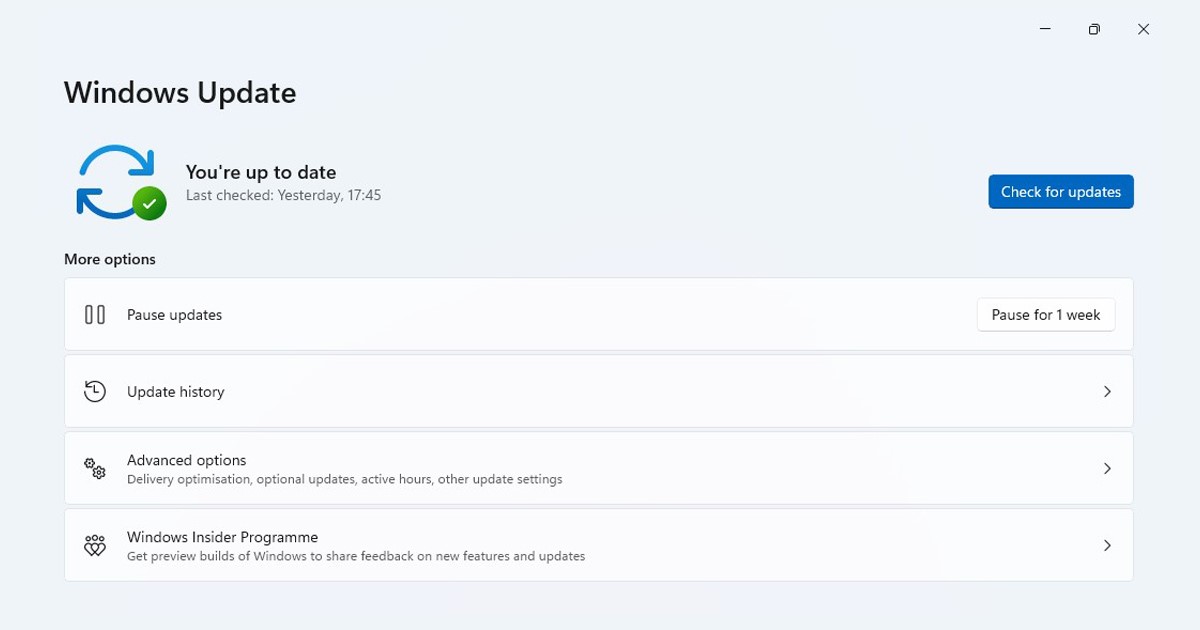
To update Windows 11, open Settings > Windows Updates. On the right side, click the Check for Updates button. Make sure to download & install all pending updates.
These are the best ways to fix the Taskbar disappeared in Windows 11. If you need more help on this topic, let us know in the comments.

