

Last Updated on August 26, 2026 by Larious
Windows users have been facing a weird problem recently. According to the users, after a restart, whenever they open Windows Search, it just shows blank. The icons, search options, everything goes missing.
Nobody knows why it’s happening, but it’s not something that affects the functionality of Windows. Anyways, if the blank Windows Search screen is troubling you, here’s what you should do to fix it.
Table of Contents
1. Restart the Windows Explorer
Windows Explorer handles the graphical part of the operating system. So, you should restart the Windows Explorer process from the Task Manager.
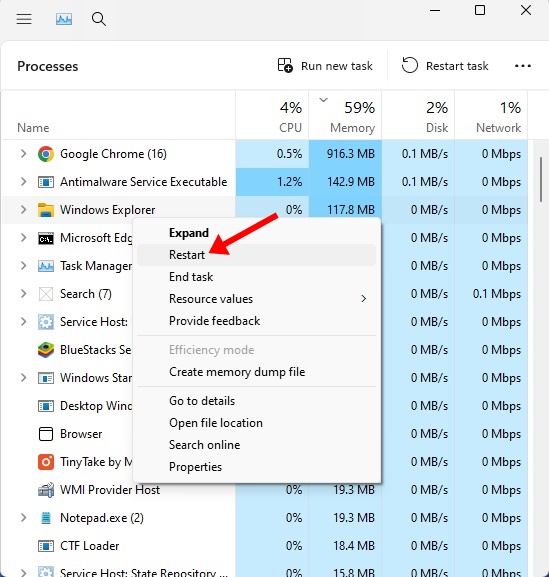
- Open Task Manager on your PC. Right-click on the Taskbar, select Task Manager.
- Move to the Processes tab.
- Find Windows Explorer.
- Right-click on it and select Restart.
The desktop screen will go blank for a second and return.
2. Restart the Windows Search Service
If the Search Service is experiencing a problem, the Windows Search bar will be stuck. Here’s how you can fix it.
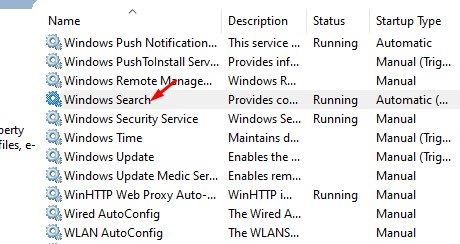
- Press Windows Key + R. In the RUN box, type services.msc and press Enter.
- In the Services window, find Windows Search.
- Right-click on it and select Restart.
Close the Windows Services window and check Windows Search.
3. Restart the SearchHost.exe file
SearchHost.exe is a very important process for the functioning of Windows Search. You should restart it as well.
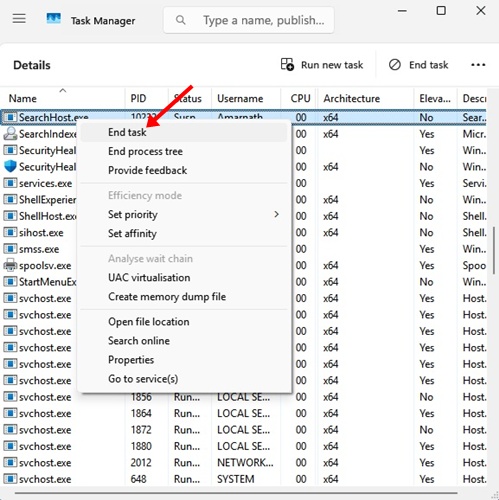
- Right-click on the Taskbar and select Task Manager.
- Switch to the Details tab.
- Find SearchHost.exe
- Right-click on it and select End Task.
Windows will restart SearchHost.exe once you open the Windows Search.
4. Disable Web Search from the Settings (Windows 10)
In this method, you will have to disable the Web Search from the Permissions & History Settings. Here’s what you need to do.
- Open Settings on Windows 11.
- Navigate to Permissions & History.
- Scroll down to Web Search and disable it.
It will disable Microsoft Bing, but it will fix the Windows Search bar.
On Windows 11:
Windows 11 users need to disable Bing search results by executing a command in the command prompt. Here’s what needs to be done.
- Right-click on the Windows Start button and select Terminal (Admin).
- Then, paste the given command and press Enter:
reg add HKCU\Software\Policies\Microsoft\Windows\Explorer /v DisableSearchBoxSuggestions /t REG_DWORD /d 1 /f
5. Update Windows 11
Sometimes, the search bar not functioning or appearing blank is just a result of a bug. It’s possible that you’re using a problematic version of Windows 11, and an update could fix that.
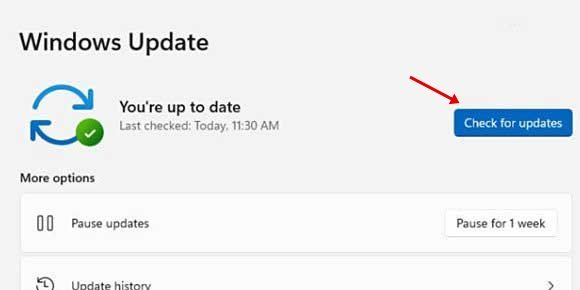
You need to head to Settings > Windows Updates and click Check for Updates on the right side.
If any updates are available, make sure to download & install them.
These are the best ways to fix the Windows 11 Search box opens up blank issue. If you need more help in troubleshooting this problem, let us know in the comments.

