

Last Updated on October 22, 2026 by Larious
When a program is not responding, you will see a pop-up that says, “The application is not responding, do you want to end this process”. At times, multiple processes or programs can stop responding, forcing you to restart. In such a situation, a shortcut for terminating all non-responsive programs can be extremely useful. We have shared two best methods to terminate all non-responsive programs in Windows 11.
Table of Contents
1. Create a Desktop Shortcut for Terminating all not responding program
In this method, we will create a desktop shortcut for terminating all not responding programs on Windows 11.
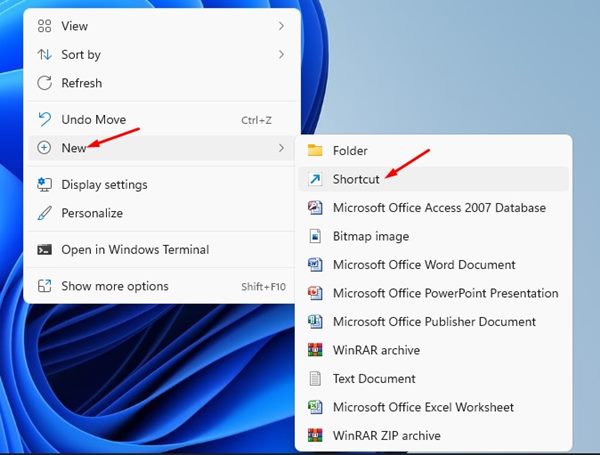
1. Right-click on a blank space on your desktop and select New > Shortcut.
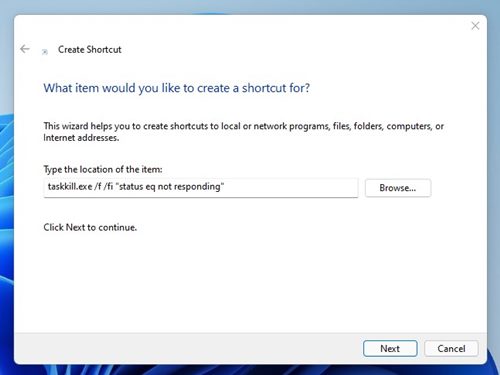
2. On the Create Shortcut window, type in the command in the location box and click Next.
taskkill.exe /f /fi "status eq not responding"
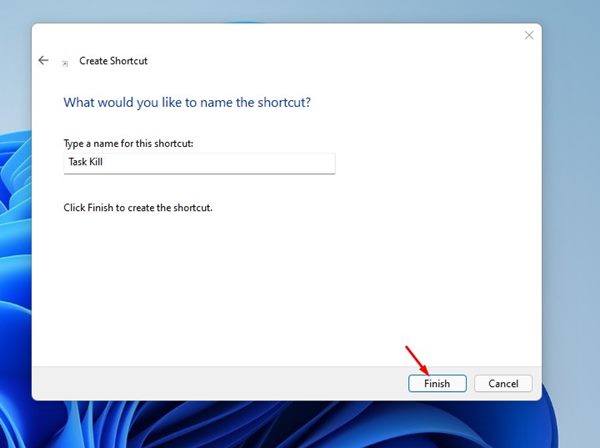
3. Enter Task Kill in the text box and click on the Finish button on the next screen.
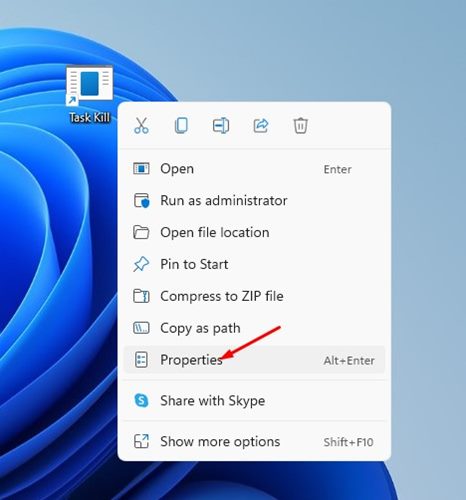
4. Right-click on the Task Kill Shortcut and select Properties.
5. Click on the Change Icon button and select an appropriate icon.
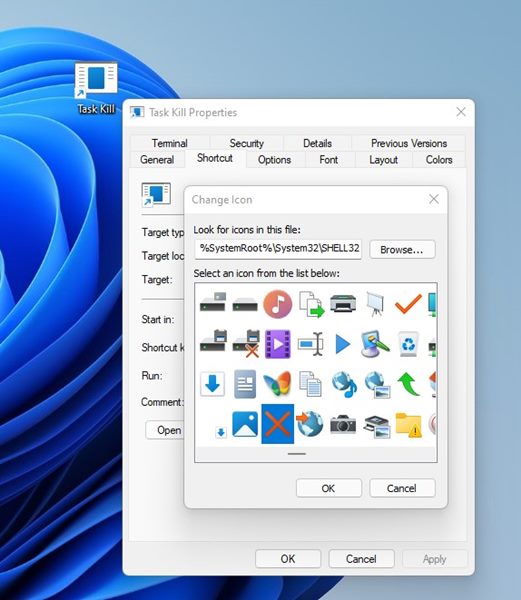
6. Once done, click on the Ok button, then on Apply.
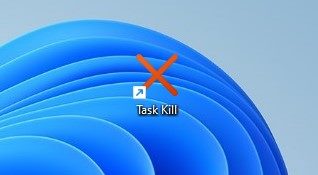
Now, whenever you feel like terminating all not responding programs on Windows 11, just double-click on the Task Kill desktop shortcut. You can also pin this icon to the taskbar or Start menu for easier access.
2. Add the Kill Not Responding Tasks option to the Context menu
In this method, we will use the Winaero Tweaker utility to add Kill Not Responding Tasks to the Windows 11 right-click menu.
1. Download & install Winaero Tweaker.
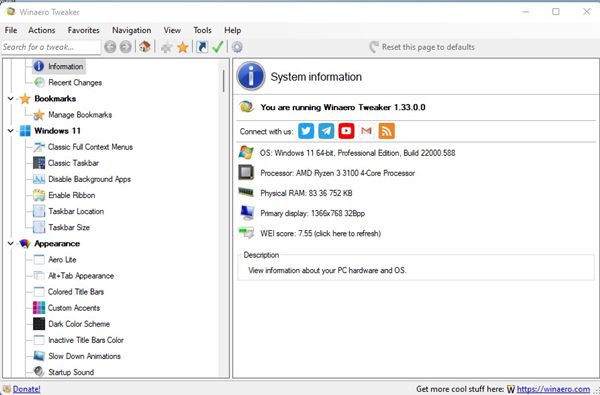
2. Open Winaero Tweaker and expand the Context Menu section.
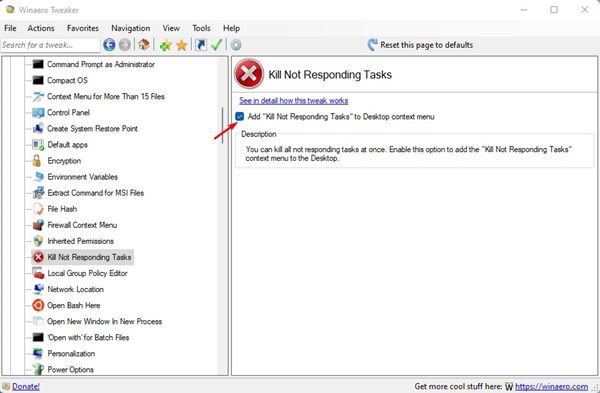
3. Scroll down and click on Kill Not Responding Tasks.
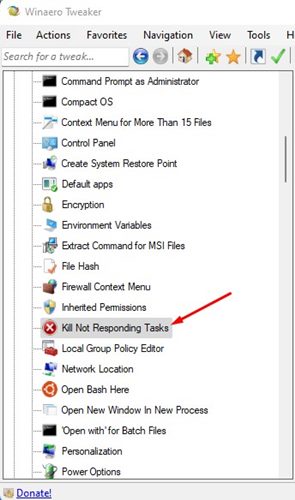
4. Check the option for Add ‘Kill Not Responding Tasks’ to the Desktop context menu.
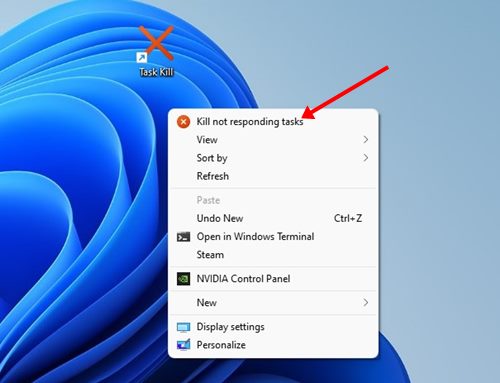
5. Right-click anywhere on the screen; you will see a new Kill not responding task option.
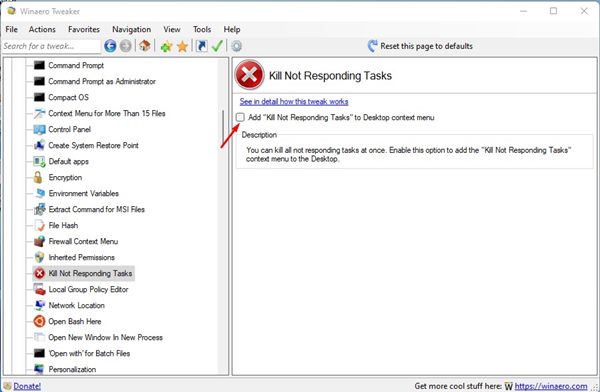
6. If you wish to remove the option, uncheck the checkbox you enabled in Step 4.
These are the two best ways to kill all unresponsive programs & processes on Windows 11. I hope this article helped you! Please share it with your friends also. If you have any doubts related to this, let us know in the comment box below.

