

Last Updated on October 25, 2026 by Larious
While using Windows Search, we wish to hide specific files & folders from appearing in the search box. You may have your own reasons for doing this, but many do it for privacy reasons. As Windows 11 lets you customize the search settings, hiding files and folders from search is very easy. So, if you are interested in hiding files and folders from the search on Windows 11, here’s what you should do.
Table of Contents
1. Hide Files & Folders from Search
We will use the Windows 11 Settings app to hide files & folders from search.
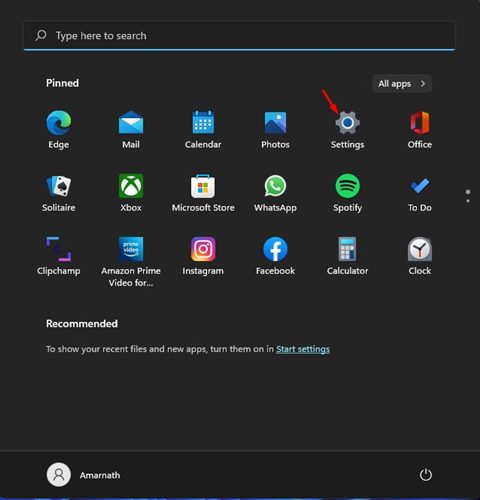
1. Click on the Windows 11 Start button and select Settings.
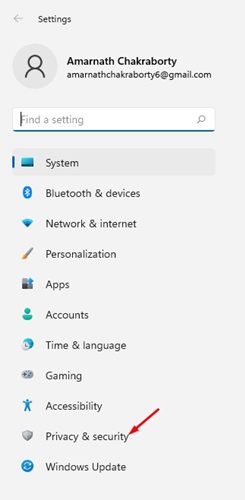
2. Click on the Privacy & security option.
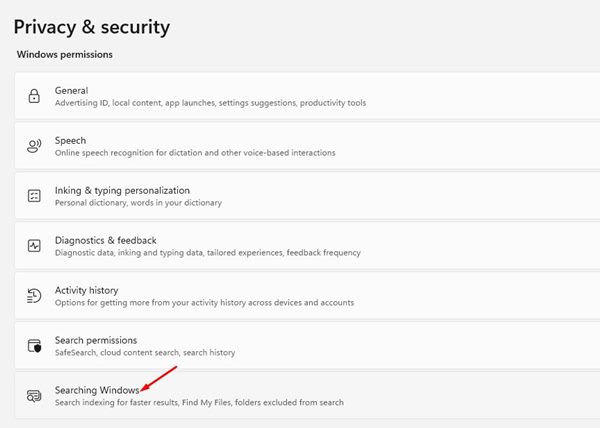
3. Click on the Searching Windows section.
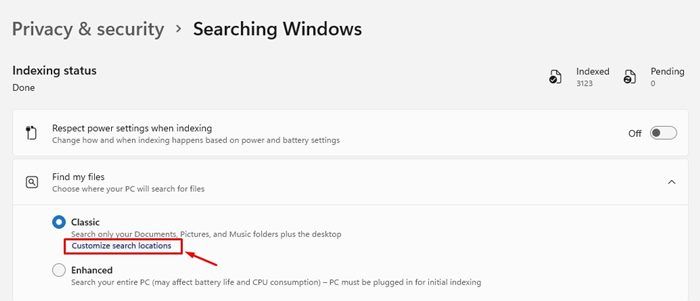
4. Now expand the Find My Files option and click on Customize search locations under Classic.
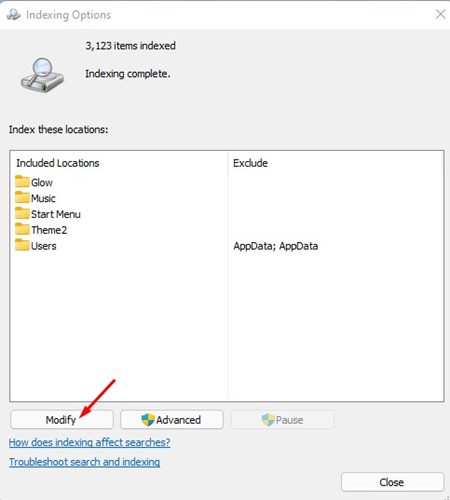
5. This will open the Indexing Options window. You need to click Modify.
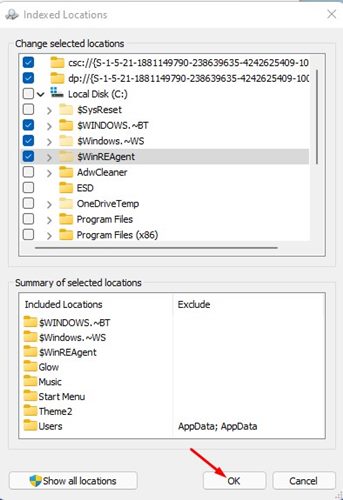
6. Check the folders you want to include in the search and uncheck the ones you want to exclude. Once done, click Ok.
2. How to Hide Folders from Search on Windows 11
If you wish to exclude specific folders from appearing in Windows Search, you need to follow these steps.
1. Click on the Windows 11 Start button and select Settings.
2. On the Settings pane, click on Privacy & Security.
3. On the right pane, click on the Searching Windows option.
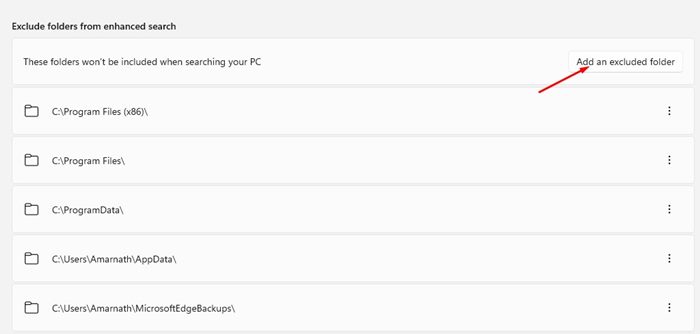
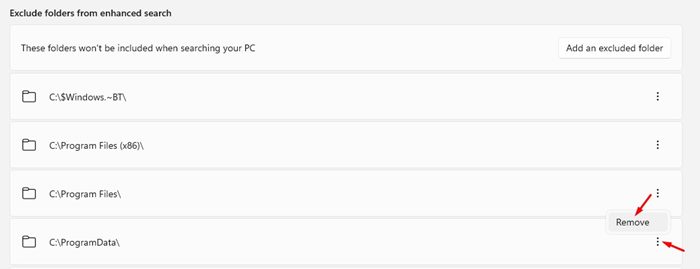
4. Now scroll down and click on the Add an excluded folder option.
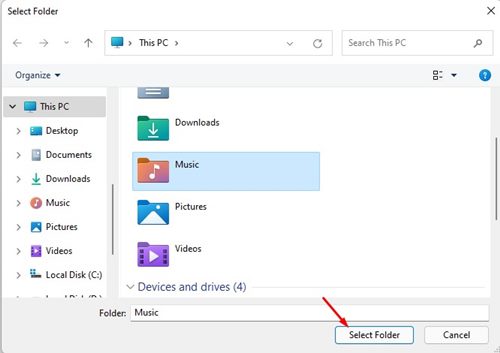
5. Now, you need to select the folder that you want to exclude from the search. Once done, click on the Select Folder button.
6. The folder will be hidden from the search results. If you wish to unhide the folder, click on the three dots beside the folder name and click the Remove button.
3. How to Hide File Type from Search on Windows 11
In this method, we will learn how one can hide file type from the search on Windows 11.
1. Click on the Windows search and type in Indexing Options. Open the Indexing Options from the list.

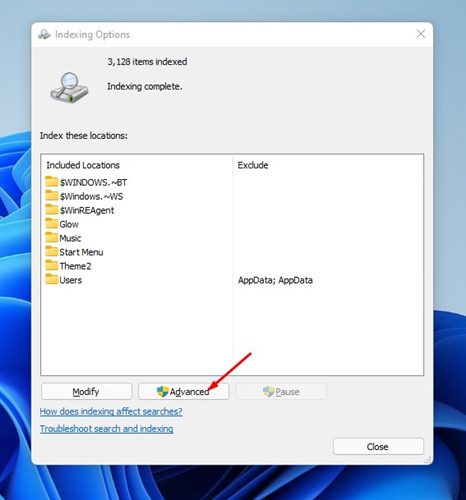
2. On the indexing option Window, click on the Advanced button.
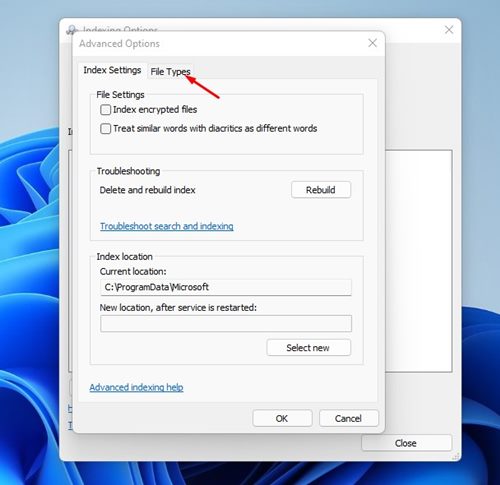
3. Under the Advanced options, select the File Types tab.
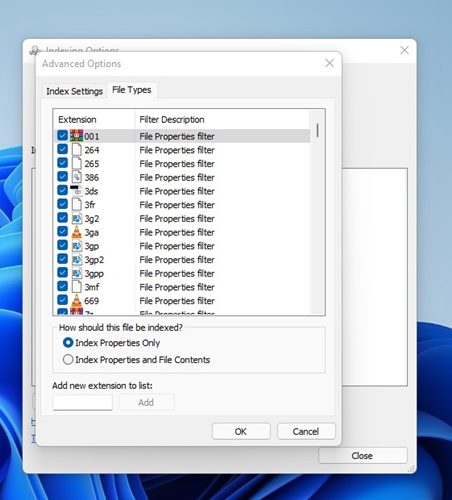
4. Go through the available file types. Simply uncheck the file type you want to exclude from the search.
5. Now switch back to the Index Settings tab and click on the Rebuild button.
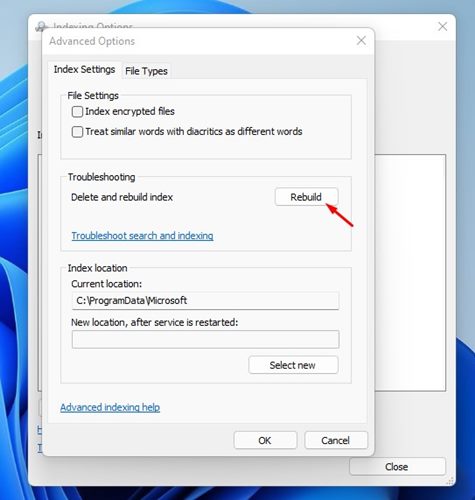
6. Windows 11 will rebuild the search index. Once done, click on Close.
That’s it! You are done. This is how you can exclude file types from Windows 11 search.
Also Read: How to Send Links from Your Android device to Windows 11
Windows 11 includes a bunch of search-related settings on Windows 11. For example, you can enable the Enhanced search mode to search every folder on your PC. I hope this article helped you! Please share it with your friends as well. If you have any doubts related to this, let us know in the comment box below.

