

Last Updated on July 18, 2026 by Larious
If your Windows 11 PC keeps losing its Bluetooth connection, you’re not alone. The issue can be caused by outdated drivers, power settings, or even faulty Bluetooth hardware.
Whatever the reason is, Bluetooth randomly disconnecting is a problem that many Windows 11 users have successfully fixed by following some general troubleshooting steps. If you’re facing a similar problem, here’s what you should do.
Table of Contents
1. Restart your computer
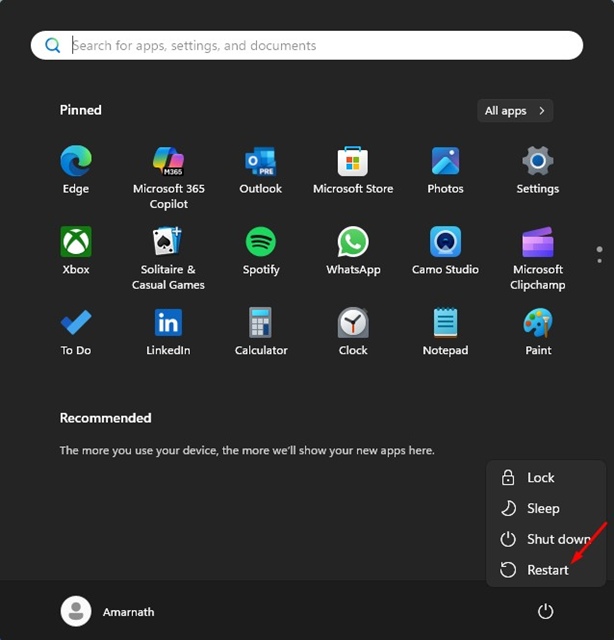
Before anything else, you first restart your computer. Restarting will remove the bugs or glitches that may be conflicting with the functionality of Bluetooth on your device.
Click on the Windows Start button and select Power Menu > Restart. After the restart, check whether your PC still loses the Bluetooth connection.
2. Reinsert the Bluetooth adapter
If you’re using a Bluetooth adapter, you need to reseat it on your computer. This will force your PC to install the correct drivers.
On a laptop, you can try turning on/off the Bluetooth connection, or try the next methods.
3. Update the Bluetooth drivers
Outdated or corrupted Bluetooth drivers are often the leading cause for connecting losing problem. Hence, you should update the Bluetooth drivers from the Device Manager.
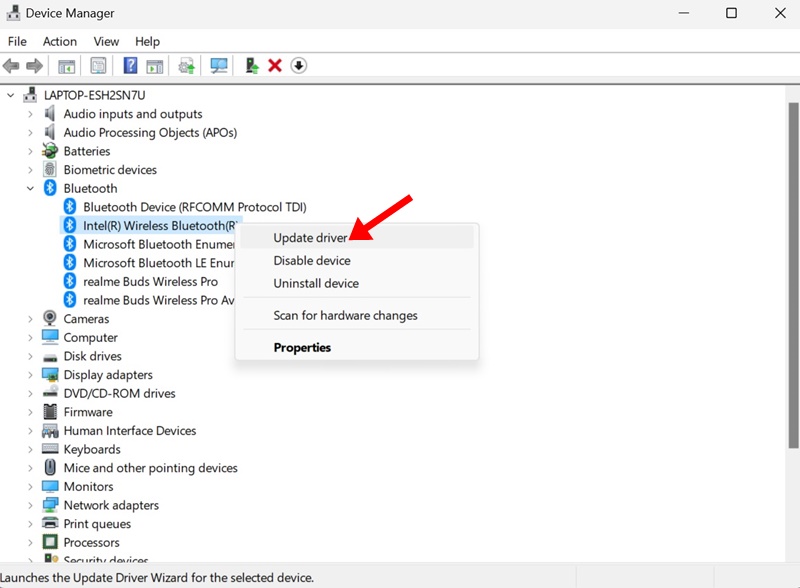
- Open Device Manager on your PC.
- Right-click on your Bluetooth device and select Update Driver.
- Next, select Search automatically for drivers.
This will download & install the most compatible Bluetooth driver on your Windows 11.
4. Reinstall the Bluetooth Driver
If updating the Bluetooth driver didn’t help, you need to reinstall the Bluetooth driver from the Device Manager.
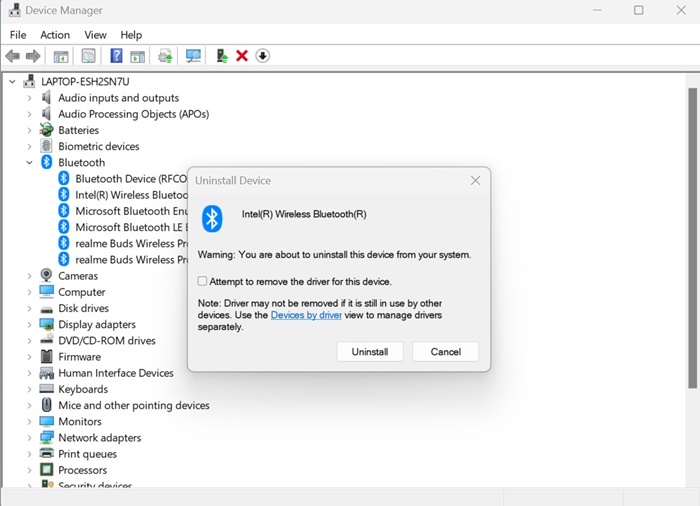
- Open the Device Manager on your PC.
- Right-click on your Bluetooth device and select Uninstall device.
- On the confirmation prompt, select Uninstall.
After the uninstallation, restart your computer. This will install the Bluetooth device and its drivers.
5. Change the Power Management Settings of the Bluetooth device
You need to make a specific change to the Power Management Settings of the Bluetooth device/adapter. Here’s what you need to do.
- Open Device Manager.
- Right-click on your Bluetooth adapter and select Properties.
- Switch to the Power Management.
- Uncheck the ‘Allow computer to turn off this device to save power’
After making these changes, restart your computer.
6. Make Changes to the Bluetooth Support Services
This is another change that you should make to fix computer keeps losing Bluetooth on Windows 11. Here’s what you should do.
- Open the Services app from the Windows Search.
- Find the Bluetooth Services.
- Right-click on it and select Properties.
- On the General tab, go to the Startup type and select Automatic.
This should fix the Bluetooth keeps disconnecting problem.
These are the best ways to fix a computer keeps losing Bluetooth connection. If you need more help with this topic, let us know in the comments.

