

Last Updated on July 19, 2026 by Larious
Many Windows 11 users have recently reported a problem where the mouse cursor suddenly becomes slow or the pointer sensitivity drops. If you’ve been facing the same problem, here’s what you can do to fix it.
Table of Contents
1. Restart your PC
Mouse sensitivity or cursor speed can suddenly drop on Windows 11 because of a temporary glitch. A simple restart can often resolve temporary glitches.
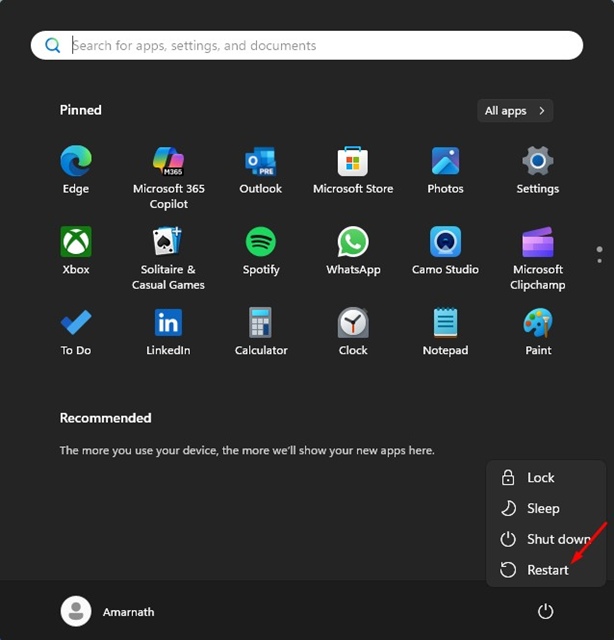
To restart Windows 11, click on the Start button and select Power Menu > Restart. After the restart, check whether you still face the problem.
2. Incorrect Mouse Speed Settings
Well, Windows 11 lets you control pointer speed. It’s possible that the mouse pointer speed was accidentally changed. To fix this, follow these steps.
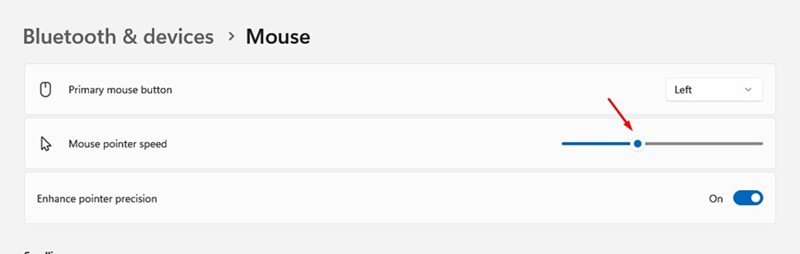
- Open Settings on Windows 11.
- Navigate to Bluetooth & Devices > Mouse.
- Use the slider beside Mouse pointer speed to increase or decrease the speed.
3. Disable the Enhance Pointer Precision
This is the Mouse Acceleration feature. Sometimes, this feature bugs out after installing system updates or drivers. You can disable it to fix the problem.
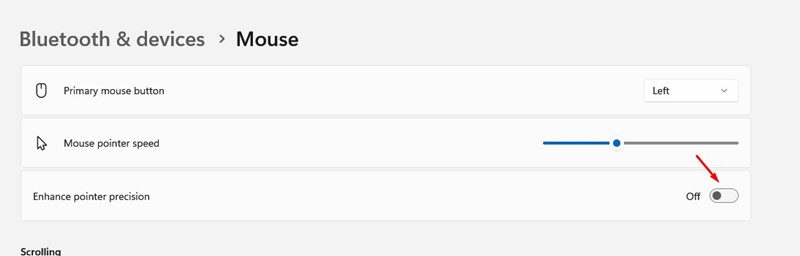
- Open the Settings app.
- Next, move to the Bluetooth & Devices > Mouse.
- Disable the Enhance Pointer Precision
After making the change, check whether the mouse problem is fixed.
4. Bluetooth Problems
Bluetooth mouse rely on a stable wireless signal. The Bluetooth on your PC may be experiencing a problem, affecting your mouse connection.
Basically, you need to check whether your PC’s Bluetooth can connect with other Bluetooth devices like headphones, a phone, etc.
5. Replace the Mouse Battery
If you’re using a wireless mouse, a dying battery can reduce its performance. It’s one of the prominent reasons for the mouse lag or the speed suddenly dropping issue.
To fix this, you need to replace the old battery with a fresh one. Or else, charge the mouse if it has a built-in rechargeable battery.
After replacing or recharging the battery, reconnect the mouse and check whether the cursor speed returns to normal.
6. Clean the Mouse Sensor
Dust or debris covering the optical or laser sensor prevents the mouse from functioning properly. You will notice problems like cursor skips, slow movement, etc.
To fix this problem, you will have to clean the sensor using a microfiber cloth. However, avoid using excessive force or liquids directly on the sensor to avoid damage.
7. Install the Windows Updates
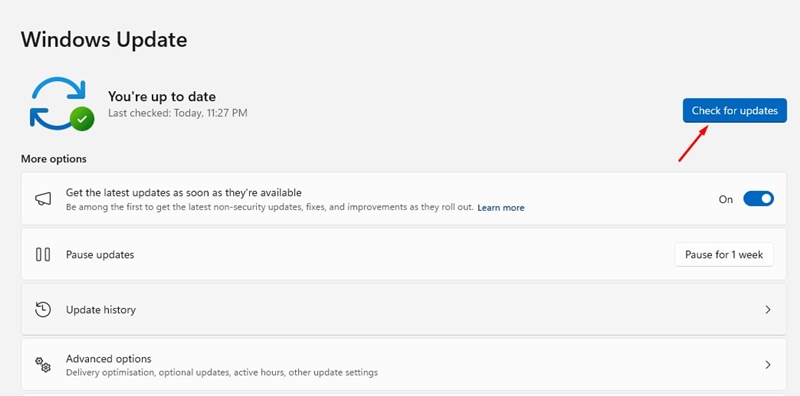
Microsoft often releases updates that targets & fixes existing bugs & glitches. It also brings better system stability and important drivers related to the mouse, keyboard, and other connected hardware devices.
So, you should install all pending Windows 11 Updates. To update Windows 11, head to System > Windows Update and click on Check for Updates. Download & install any available updates.
These are the best ways to fix cursor speed/mouse sensitivity suddenly dropped. If you need more help with this topic, let us know in the comments.

