

Last Updated on June 25, 2026 by Larious
The ‘Your device ran into a problem and couldn’t be repaired’ error generally appears when the Startup Repair fails. If you’ve seen the same screen, here’s what you should do to fix it.
Table of Contents
1. Run the Startup Repair Manually
Even if the first attempt failed, you should run the Startup Repair again. Here are the correct steps to run it.
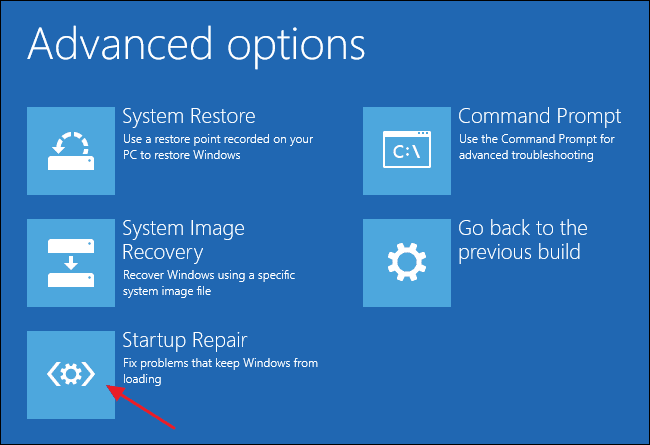
- Force shut down your PC 3 or 4 times to enter the Recovery Mode.
- On the Troubleshoot screen, select Advanced Options.
- On the Advanced Options, select Startup Repair.
This will run the Startup Repair. This will run and resolve all boot problems.
2. Run the Check Disk Utility
File system errors, bad sectors, and data corruption are other reasons for this problem. Hence, you should run the Check Disk utility as well.
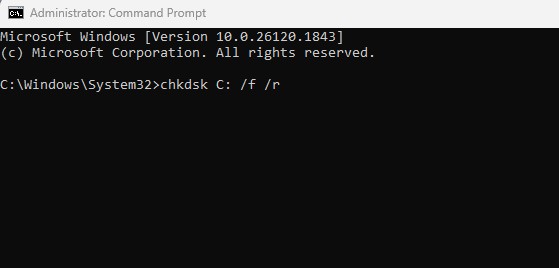
- Move to the Advanced Options in Recovery Mode.
- Then, select Command Prompt.
- On the Command Prompt, enter this command: chkdsk C: /f /r
You should wait until the scan completes. Once completed, restart your device.
3. Run the System File Checker Utility
To rule out the possibility of system file corruption, you should run the SFC command in Recovery Mode.
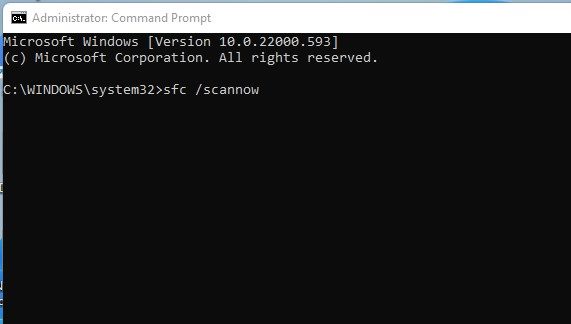
- Enter the recovery mode and navigate to the Advanced Options.
- On the Advanced Options, select Command Prompt.
- Then, type this command and press Enter: sfc /scannow
4. Wait for a few seconds for the scan to complete. Once completed, restart your PC.
4. Use System Restore
For many Reddit users, using the system restore option is helpful. Basically, you will have to use a restore point recovered on your PC to restore Windows.
- In Recovery Mode, move to the Advanced options.
- Next, select System Restore.
- Select a restore point before the problem.
Then, follow the instructions to complete the system restore.
5. Run Windows in Safe Mode
You will have to restart your PC, then boot into the Windows Recovery Environment. Once you boot into the WinRE, follow these simple steps to fix the error.
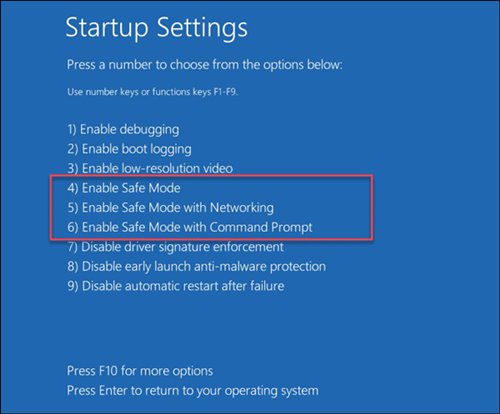
- Navigate to Troubleshoot > Advanced Options > Startup Settings > Restart.
- Press F5 or F3 and select Safe Mode with Networking.
This will boot your Windows, and you may see the ‘Finishing Updates’ screen. This may be the reason you got the ‘Device ran into a problem and couldn’t be repaired.’ error.
These are the 5 working ways to fix the ‘Device ran into a problem and couldn’t be repaired’ error message. If you need more help fixing this problem, let us know in the comments.

