

Last Updated on July 2, 2026 by Larious
If you’ve used Windows 10, you may know that the operating system asked for confirmation while trying to delete a file. On Windows 11, when you select a file, right-click it and select Delete, it just moves to the Recycle bin without any additional confirmation.
Yes, you have an option to get back the deleted files from the Recycle bin, but what if you don’t want to accidentally delete the files in the first case? If you want, you can enable the delete confirmation prompt for that.
How to Enable Delete Confirmation in Windows 11?
The delete confirmation feature is already available on Windows 11, but it’s hidden under the Recycle Bin Properties and kept disabled by default. This means you won’t have to use any third-party app to bring back the old delete confirmation in Windows 11.
If you want that old-school feature, you should manually enable it from the Recycle Bin Properties by following these simple steps.
1. Right click the Recycle Bin icon and select Properties.
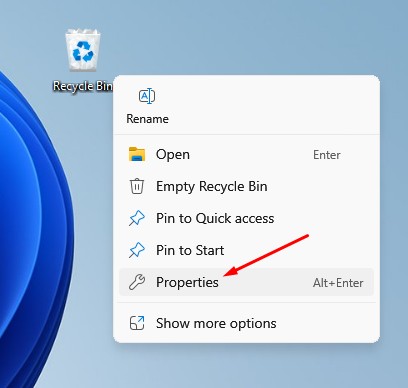
2. On the Recycle Bin Properties, check the ‘Display delete confirmation dialog‘ option.
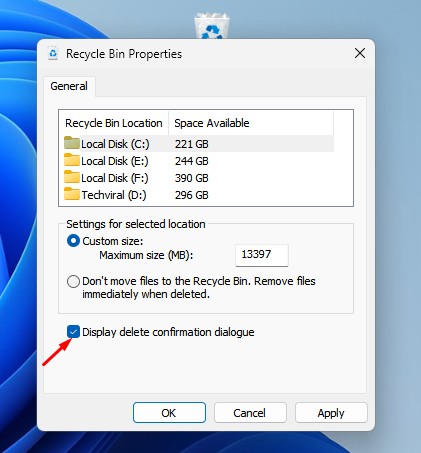
3. Once done, click Apply and then OK.
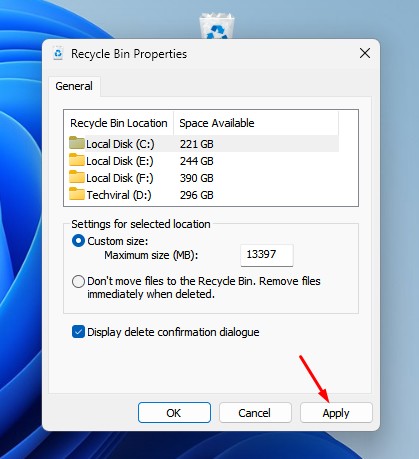
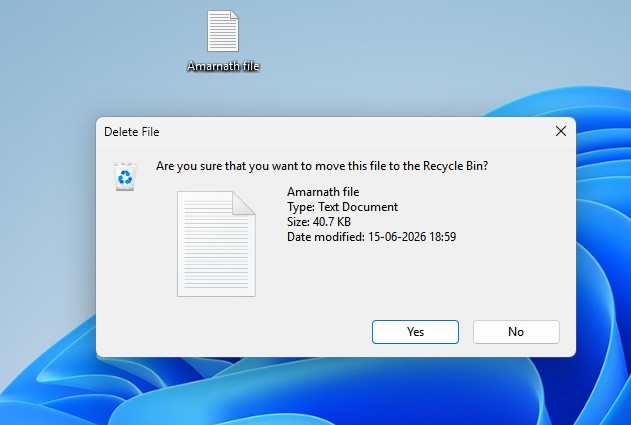
4. Now whenever you delete a file, you will get the Delete confirmation prompt.
If you can’t see the Recycle Bin on your desktop, open Settings and navigate to Personalization > Themes > Desktop Icon Settings.
On the Desktop Icon Settings, check the Recycle Bin and click Apply and then OK. However, do note that Desktop Icon Settings will be grayed out if you’re using a non-activated version of Windows.
Even though you have an option to restore the deleted files from the Recycle Bin, it’s always best to have an additional confirmation prompt before deleting the files.
This guide explains how to enable Delete Confirmation in Windows 11. If you need more help on this topic, let us know in the comments. Also, if you find this guide helpful, don’t forget to share it with your friends.

