

Last Updated on October 18, 2025 by Larious
Even though you have lots of AI tools that can convert your images into videos, most of them are premium. Grok’s Imagine can generate these things for free.
We have already covered how to turn still images into videos with Grok AI. Today, we will be discussing how to generate videos from text prompts.
Table of Contents
Generate Videos from Text Prompts – Grok AI
Grok doesn’t have any text-to-video conversion feature, but it can generate images and then turn them into a short video.
So, you will have to feed Grok AI the text prompts to generate photos first. It will generate a few samples of your text prompts.
Once you find the image, you can turn it into a video. That’s how easy it is. Also, you can add text prompts to the generated videos to further optimize them.
How to Generate Videos from Text Prompt with Grok AI
It’s pretty easy to generate videos with Grok AI. To do so, follow these simple steps.
1. Launch your favorite web browser and visit this webpage. Log in with your Grok account.
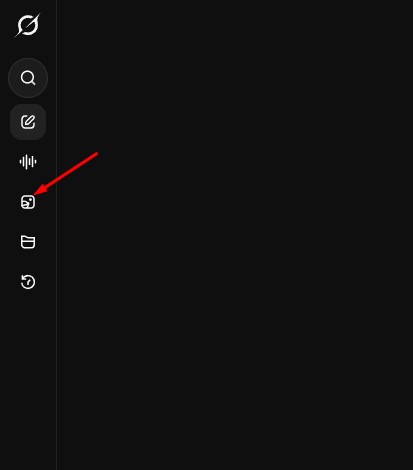
2. Next, switch to the Imagine tab at the left sidebar.
3. On the Type to Imagine field, enter the text prompt for the image.

4. Grok Imagine will give you many AI images. You need to click the one that you want to turn into a video.

5. Next, click on the Make video button.

6. Wait for a few seconds. This will turn the image into a video.
7. If you want to modify the video, use the Type to customize video field and press Enter.
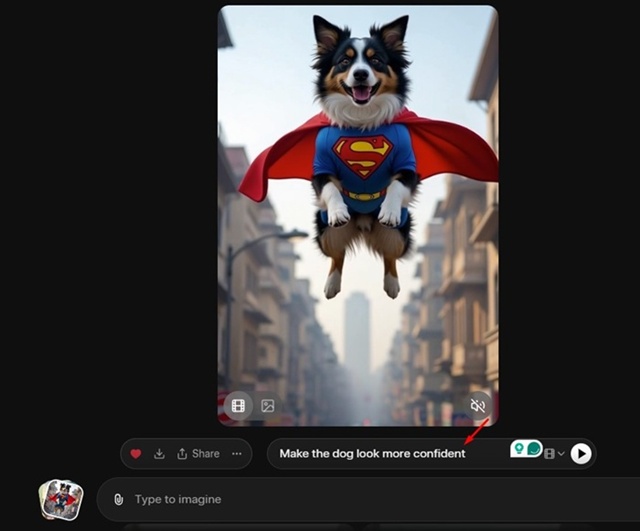
8. Once you’re satisfied with the video, click the Download button.

The video will be downloaded to your computer.
This article explains how to use Grok AI to generate videos using text prompts. If you need more help in generating AI videos with Grok AI, let us know in the comments.

