

Last Updated on July 20, 2026 by Larious
Task Manager is one of the most useful utilities available in Windows. It’s a tool that lets you manage different apps and processes running on the device. With the Task Manager, you can restart processes, force close the apps that aren’t functioning, etc. Also, you can gain crucial information about your PC’s hardware specs.
Since we deal with the Task Manager at regular intervals, what if the Task Manager freezes? Many Windows 11 users have recently reported that Task Manager freezes or becomes unresponsive whenever they try to open it. If you’re dealing with the same problem, here’s what you should do to fix it.
Table of Contents
1. Restart your computer
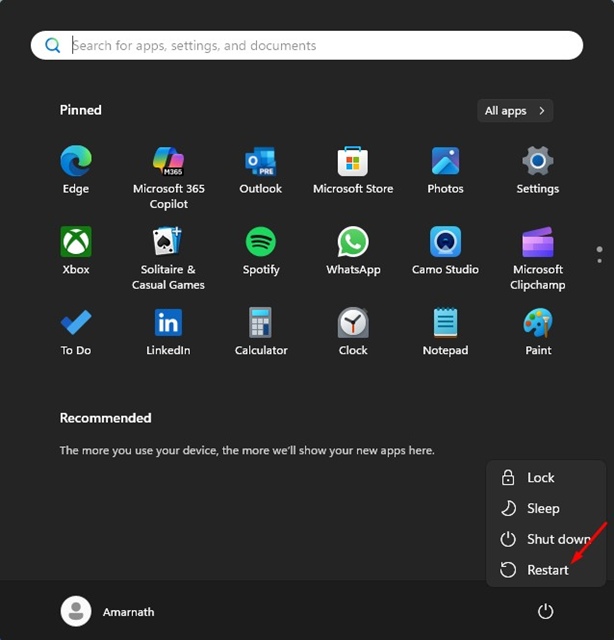
Before you do anything else, restart Windows 11. This is because restarting will remove the bugs & glitches preventing the Task Manager from running.
To restart Windows 11, click on the Windows Start Button. Then, click on the Power menu and select Restart. After the restart, check whether you can open Task Manager.
2. Run the SFC Command from the Command Prompt
You need to run the System File Checker utility to rule out the possibility of having corrupted system files. Here’s how you can run the SFC command from the Command Prompt.
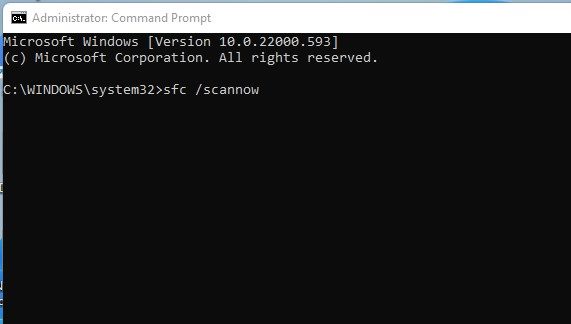
- Open Command Prompt with admin rights from the Windows Search.
- When the command prompt opens, type sfc /scannow and press Enter.
- This will run the system file checker utility.
This will replace all corrupted Windows files.
3. Run the DISM Command
If the system file checker utility returns with an error, you need to run the DISM Command. Here’s what you need to do.
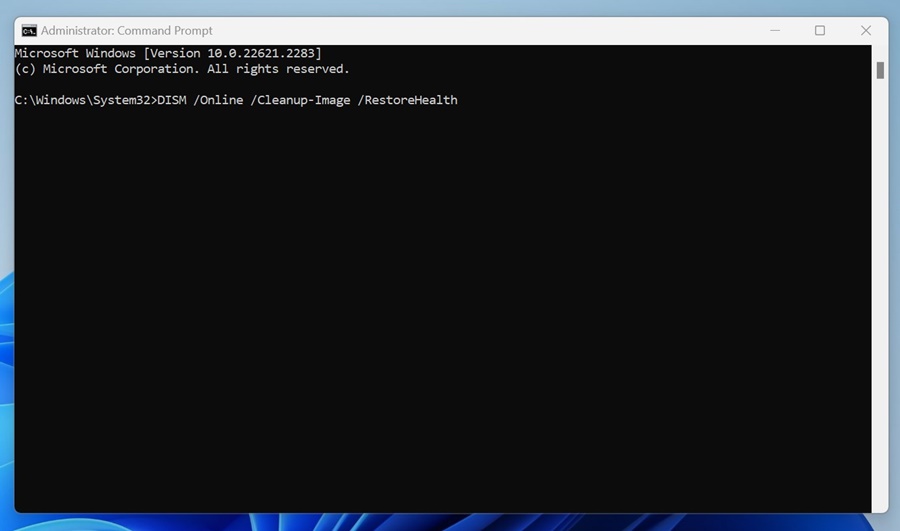
- Open Command Prompt with admin rights.
- When the command prompt opens, execute these commands one after another.
DISM /Online /Cleanup-Image /CheckHealth
DISM /Online /Cleanup-Image /ScanHealth
DISM /Online /Cleanup-Image /RestoreHealth
After running all the commands, restart your Windows 11 PC. This should fix the Task Manager freezing or not opening issue.
4. Install the Pending Windows 11 Updates
Certain Windows 11 builds included bugs that affected Task Manager. So, you should install the latest Windows 11 updates.
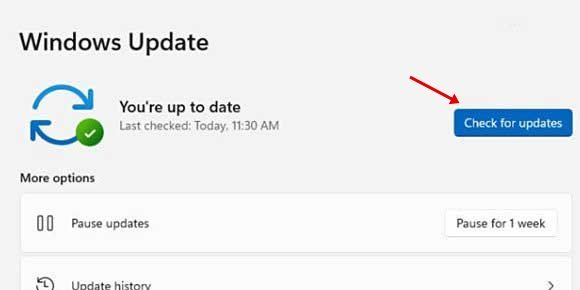
To update Windows 11, head to Settings > Windows Update. On the right side, click on the Check for Updates button and then download & install all available updates.
5. Uninstall Updates from the Windows Recovery Environment
Taskbar crashing or freezing is usually a problem linked to the recent Windows Updates. If you’re still facing the problem, you need to uninstall the recent updates from the Windows Recovery Environment. Here’s what you need to do.
- Return to the Login screen. Press & hold the Left Shift key, click the Power icon, and select Restart.
- This will take you to the Windows Recovery Environment.
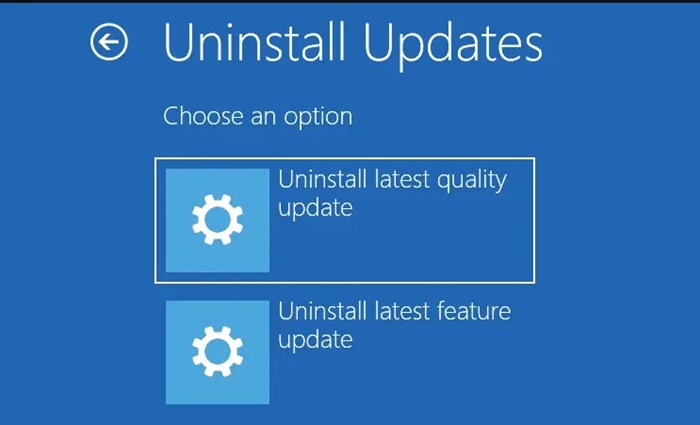
- Navigate to Troubleshoot > Advanced Options > Uninstall Updates.
- Select Uninstall latest quality update.
Once uninstalled, boot into the main screen and check whether the Task Manager problem has been fixed.
These are a few of the best ways to fix Task Manager crashing or freezing on Windows 11. If you need more help in this topic, let us know in the comments. Also, if you find this guide helpful, share it with your friends.

