

Last Updated on August 9, 2026 by Larious
Windows 11 gives us many ways to troubleshoot problems. For example, the System File Checker utility can fix corrupt system files; the disk check utility fixes drive-related problems; and the DISM command-line tool is used to service, repair, and manage operating system images and system files.
When the sfc /scannow command fails to fix specific problems, the DISM command-line tool is used. However, recently a few users have been facing Error 0x800f0915 while running the DISM /Online /Cleanup-Image /RestoreHealth function.
If you have been trying to fix Windows problems but can’t due to DISM Error 0x800f0915, here’s what you should immediately do.
Table of Contents
Why does the DISM Error 0x800f0915 occur?
While repairing the System image or files, DISM tries to grab the replacement files either from Windows Update or from the repair source. However, if the required files are not available, it shows you the error.
The DISM Error 0x800f0915 generally appears due to inactive internet, incorrect repair source selection, a corrupted Windows ISO file, a system-level bug, or a glitch. If you get this error, here’s what you should do to fix it.
1. Check your internet
DISM requires downloading the required repair files. If there’s no internet, the process will fail and will trigger an error.
So, before trying the advanced troubleshooting, you need to check whether your device is connected to the internet. Try opening a few websites in your web browser and check whether the internet is working properly or not.
2. Use a Matching Windows ISO
If you’re using a Windows ISO file as the repair source, make sure it matches your current Windows Edition, version/build, language, and architecture. If they don’t match, DISM will show you the error.
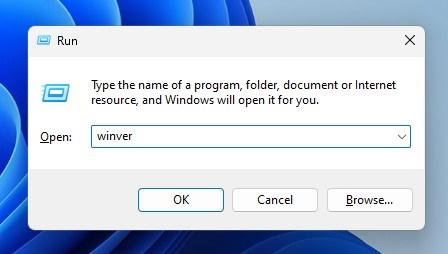
Press the Windows Key + R, type winver, and check your Windows version and build. Then download the matching Windows ISO from Microsoft and mount it.
The ISO file that you’ve mounted may have either install.wim or install.esd, you need to select the correct image index for your Windows Edition.
3. Run StartComponentCleanup
Well, many Windows users have claimed to fix DISM Error 0x800f0915 by cleaning up the Windows Component Store. You can try doing it as well.
Launch the Command Prompt with admin rights and execute the given command:
DISM.exe /Online /Cleanup-Image /StartComponentCleanup
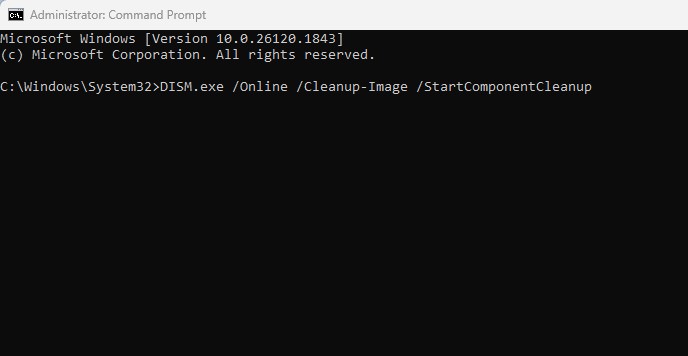
Wait for the process to complete. Once done, you can now execute the command that’s showing you the error.
4. In-Place Upgrade Windows 11
If you still get the error, you should consider performing an in-place upgrade.
To perform an in-place upgrade, you should download the latest Windows Installation media, mount the ISO file, and then run Setup.exe. Select ‘Keep personal files and apps‘ and complete the upgrade process.
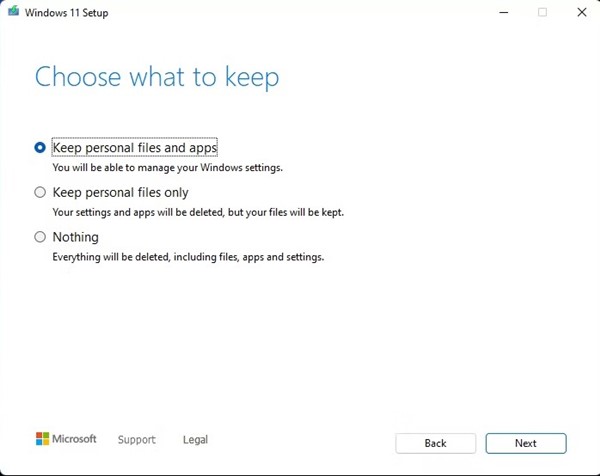
This will reinstall Windows, but will keep your personal files, apps, and settings. Once the upgrade is complete, you can run the DISM command if needed.
These are the best methods to fix DISM Error 0x800f0915. If you need more help with this topic, let us know in the comments. Also, if you find this guide helpful, share it with your friends.

