

Last Updated on August 6, 2026 by Larious
Recently, a few Windows 11 users have been facing problems after installing a system update. All of a sudden, whenever they open the search, the Search panel turns completely white for about a minute before loading. Some users can see the icons, but can’t read the text.
If you’ve been facing the same problem recently, you should make a few changes to fix this. Here’s what you should do if the Windows Search bar is stuck being completely white.
Table of Contents
1. Restart the Windows Explorer Process
A bug or system level glitch may be conflicting with the Windows Explorer Process. Windows Explorer manages several parts of the Windows interface, including the desktop, taskbar, and File Explorer.
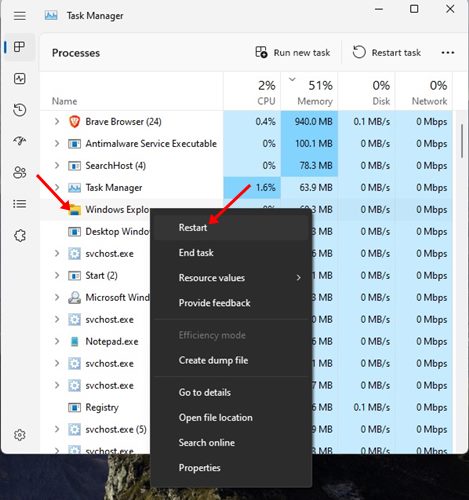
If it’s experiencing a problem, you may encounter issues such as a Windows 11 Search white screen. So, you need to open the Task Manager, find Windows Explorer, right-click on it, and select Restart.
2. Restart Windows Search
Follow these steps to restart the Windows Search (SearchHost.exe) on Windows 11.
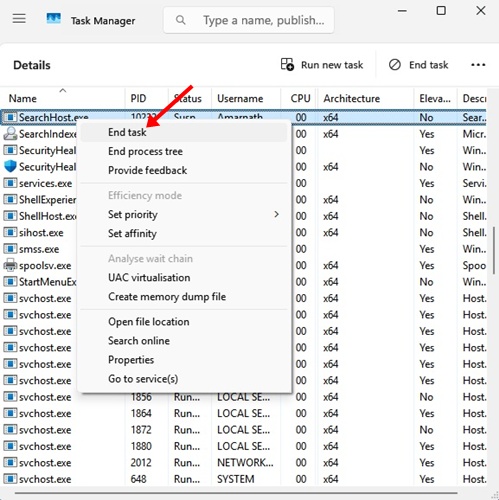
- Open Task Manager on Windows 11.
- Move to the Details tab. In the name column, find the SearchHost.exe process.
- Right-click on it and select End Task.
If this solution doesn’t work, restart your PC.
3. Make Changes to the Registry Editor
If your problem is still not fixed, you should make these changes in the Registry Editor to resolve the white screen issue in Windows Search.
1. Open Registry Editor from the RUN dialog box.
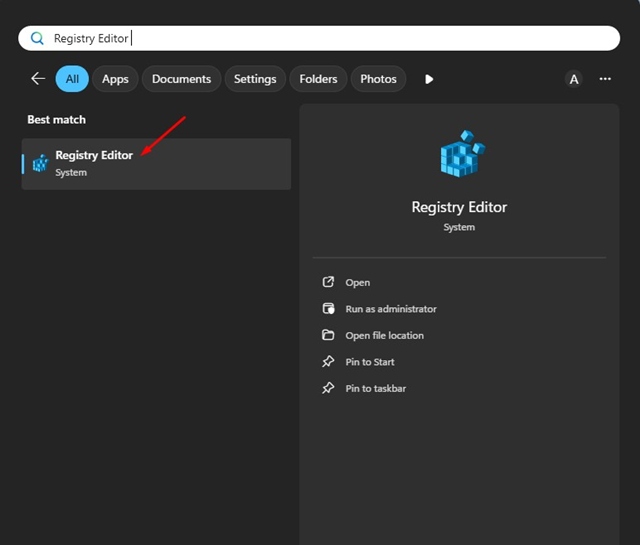
2. Navigate to this path:
Computer\HKEY_CURRENT_USER\Software\Microsoft\Windows\CurrentVersion\Search
3. On the right side, right-click and select New > DWORD (32-bit) Value
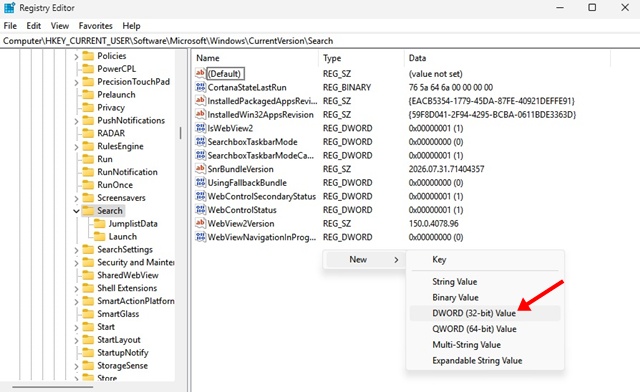
4. Name the new value as BingSearchEnabled.
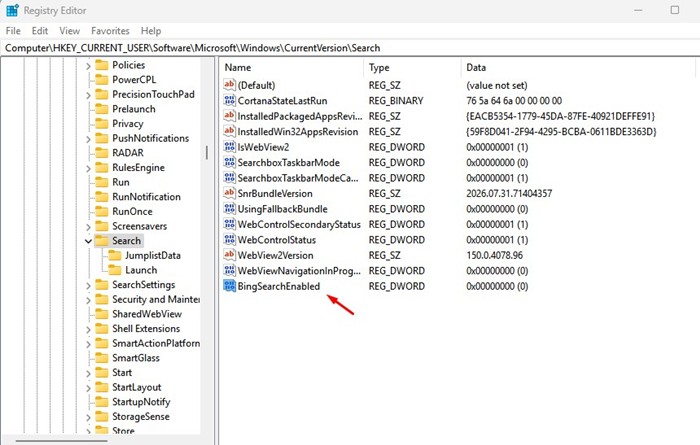
After making the changes, close the Registry Editor and restart your PC.
4. Uninstall the Recent Updates
If the problem started after a Windows update, the recently installed update could be responsible. So, you can try uninstalling the recent updates and check whether this fixes the problem.
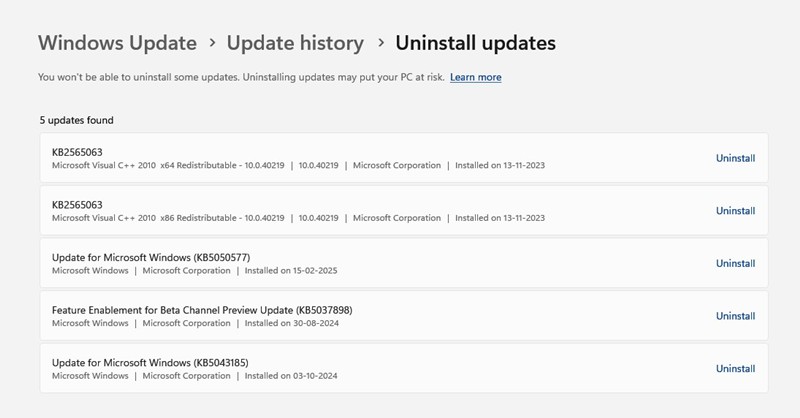
- To Uninstall the Recent updates, follow these simple steps.
- Open Windows Settings and go to Windows Updates.
- Click on Update History > Uninstall Updates.
- Uninstall the recently installed updates.
5. Run the System File Checker Utility
System File Checker utility finds and repairs corrupted system files. You should run this scan as well to fix the problem.
1. Open Command Prompt with admin rights.
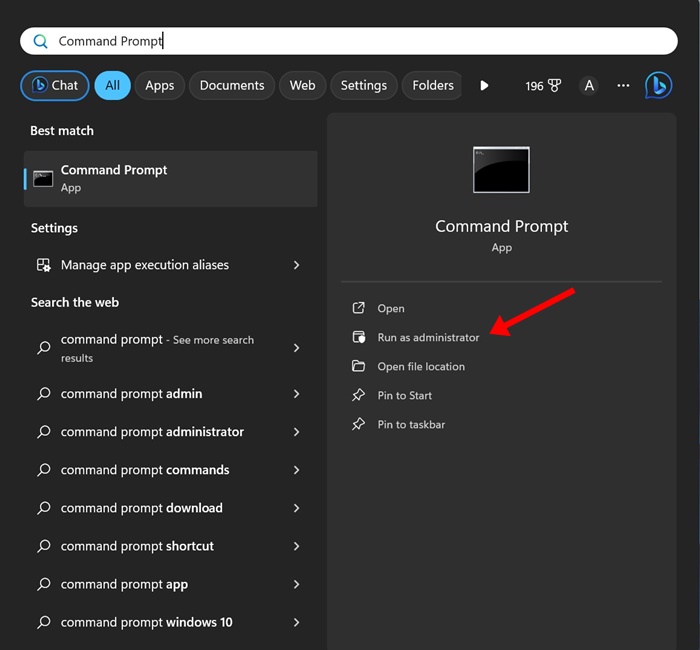
2. On the command prompt, type sfc /scannow and press Enter.
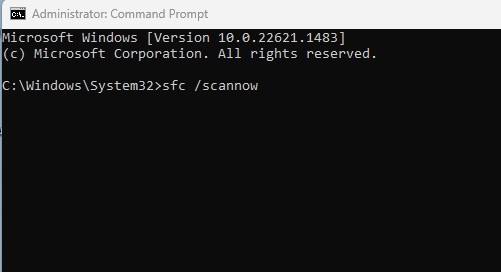
3. Wait until the scan completes.
Once done, restart your Windows 11 PC.
These are the best ways to fix a white screen on Windows 11 Search. If you need more help fixing this problem, discuss it with us in the comments. Also, if you find this guide helpful, share it with your friends.

