

Last Updated on July 13, 2026 by Larious
Recently, Windows 11 users have been experiencing a strange issue. According to users, upon restarting the PC, the icons on the desktop suddenly became too big. The issue usually occurs after the PC is restarted or shut down.
Desktop icons becoming too large can be caused by temporary Windows glitches, display scaling issues, or accidental changes to the icon size. Whatever the reason, here’s how to fix desktop icon sizes on Windows 11.
Table of Contents
1. Check for the faulty touchpad
If you’re using a laptop, a faulty touchpad could be causing the problem. On Windows, using a two-finger scroll gesture while holding the Ctrl key increases or decreases the size of desktop icons.
Sometimes, this issue occurs when either the keyboard or the touchpad is malfunctioning. However, it’s also possible that you accidentally held down the Ctrl key and used the two-finger scroll gesture while your PC was starting up.
To restore the normal desktop icon size, press and hold the Ctrl key, then scroll down on the touchpad with two fingers. This will reduce the size of the desktop icons.
2. Change the Icon size from the Context Menu
You can change the desktop icon size on Windows 11 without digging into the Settings. To change the Icon size, right-click the desktop.
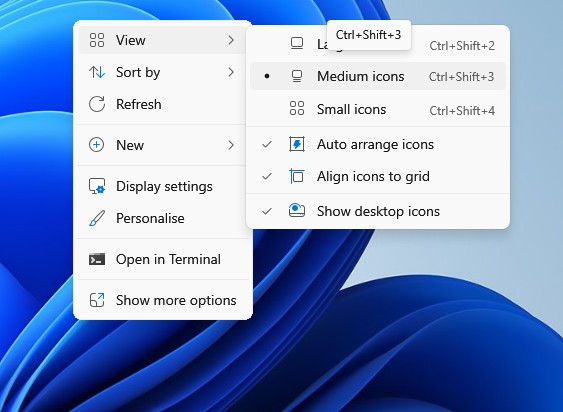
On the Context menu, select View > Medium Icons, which is the default. If you want to decrease the icon size, select small ICONS. If you want to increase it, select Large Icons.
You can also switch between the desktop icon sizes by pressing CTRL + SHIFT + 2, CTRL + SHIFT + 3, CTRL + SHIFT + 3.
3. Adjust the Scale and Layout
Adjusting the scale will change the size of text, apps, and other items. Here’s how you can adjust the scale and layout in Windows 11.
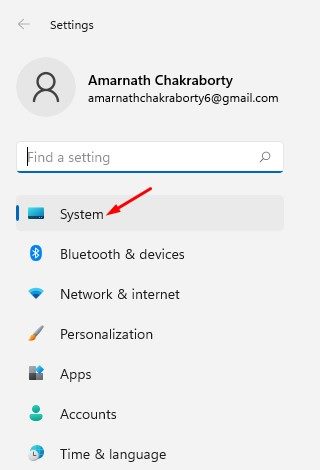
1. Open the Windows 11 Settings.
2. Switch to the System in the left sidebar.
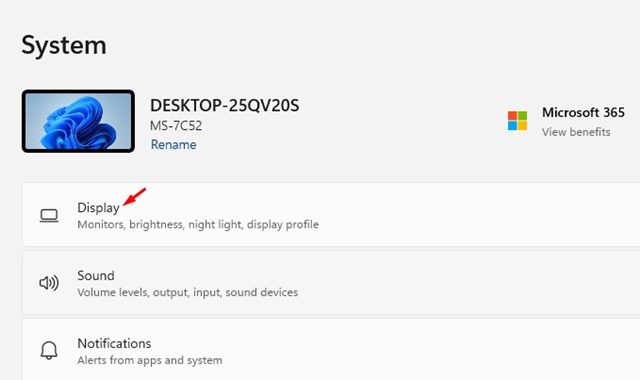
3. On the right, click Display.
4. On the Scale dropdown, select 100% (Recommended).
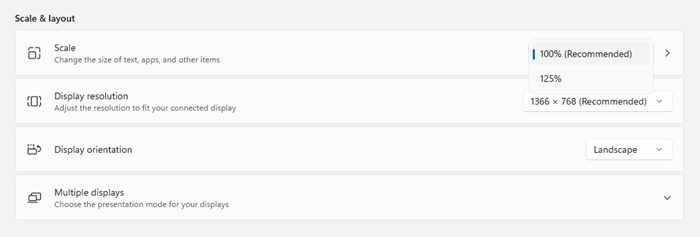
This will bring back the desktop icon size to the default.
4. Install the Windows 11 Updates
Bugs and glitches in the operating system often contribute to the desktop icon size suddenly becoming too big. You can eliminate such bugs and glitches by installing the latest version of Windows 11. To update Windows 11, head to Settings > Windows Update.
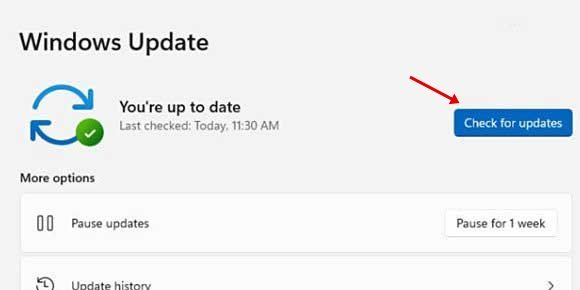
On the right side, click on the Check for Updates button. This will find, download & install all available updates.
5. Run the SFC and DISM commands
If you’re still experiencing the problem, you need to run the SFC and DISM commands via the Command Prompt. Here’s what you need to do.
1. Open Command Prompt with admin rights.
2. When the command prompt opens, type this command and press Enter.
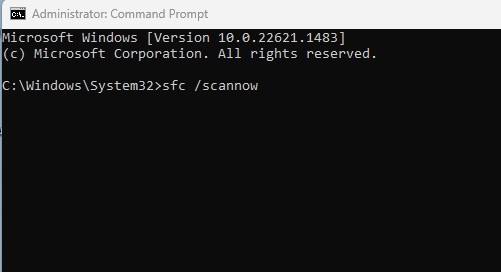
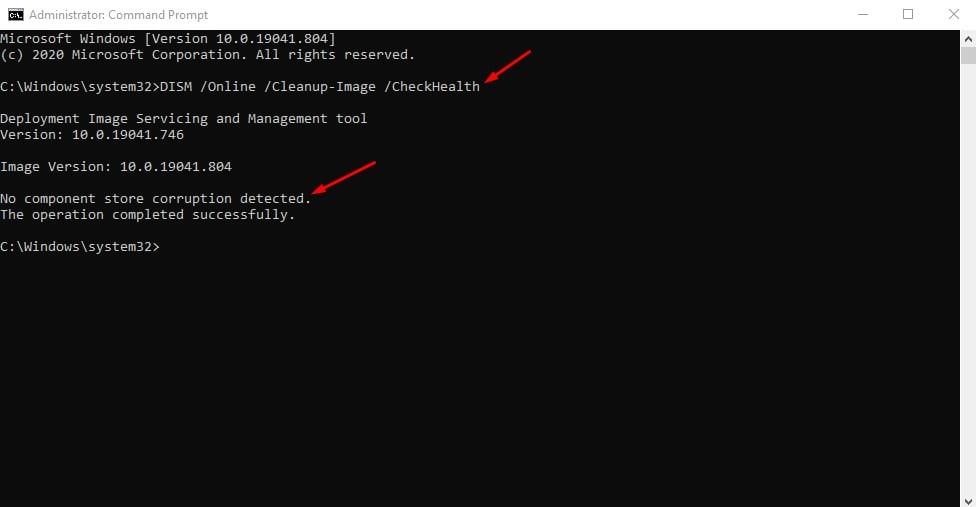
3. If the scan returns with an error, run these commands:
- DISM /Online /Cleanup-Image /CheckHealth
- DISM /Online /Cleanup-Image /ScanHealth
- DISM /Online /Cleanup-Image /RestoreHealth
This guide explains how to fix icons suddenly too big issue. If you need more help with this topic, let us know in the comments. Also, if you find this guide helpful, share it with your friends.

