

Last Updated on July 17, 2026 by Larious
The Settings app is where you configure almost every aspect of Windows 11. However, what if the app itself crashes while selecting specific options?
If the Windows 11 Settings app crashes whenever you open the Location, Camera, or Microphone settings, you’re not alone. Many users have reported experiencing the same issue. If you have been facing the same problem, here’s what you should do.
Table of Contents
1. Restart your PC
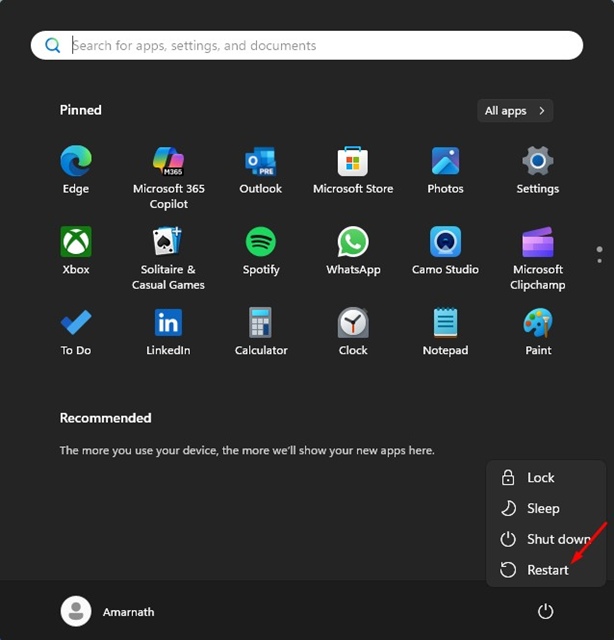
Before moving on to advanced troubleshooting, restart your PC. This refreshes system processes and can resolve temporary glitches that may be causing the problem.
So, click on the Windows 11 Start button > Power Menu and select Restart. After the restart, check whether you’re able to access the Location, Camera, or Microphone settings.
2. Install the Pending Windows Updates
Yes, problematic Windows Updates can lead to such problems. Hence, you should install all pending Windows Updates.
Also, it’s a good idea to keep Windows 11 up to date. This ensures proper stability, bug fixes, and timely security patches.
Head to the Windows 11 Settings > Windows Update > Check for Updates. Then, update all available Windows 11 Updates.
3. Re-Register the Settings app
If you still face the problem, you should reset the Settings app on Windows 11. Here’s what you should do.
1. Type Settings in the Windows Search, right-click on Settings, and then select More > App Settings.
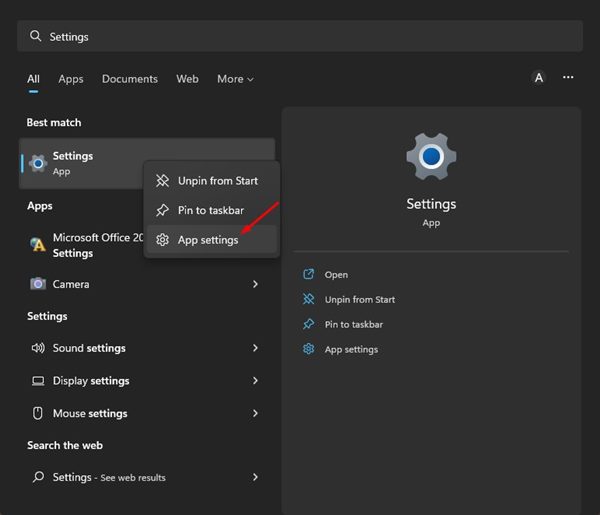
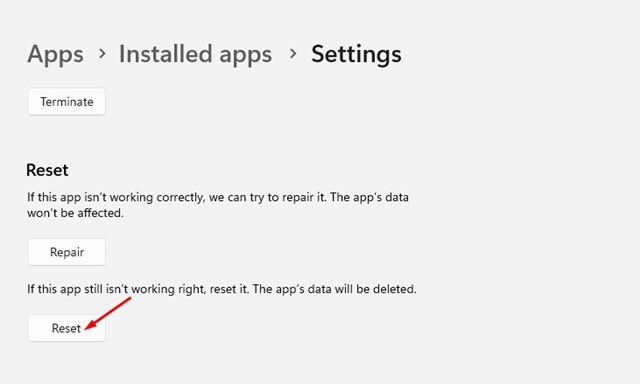
2. Next, click on the Reset.
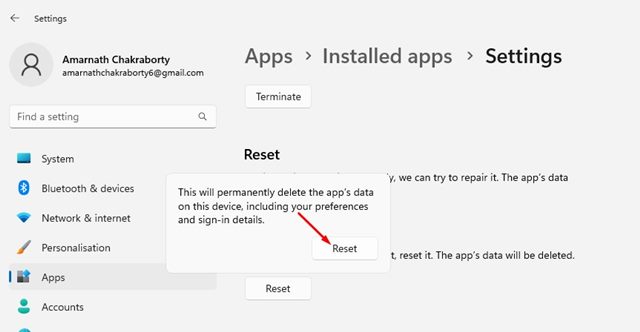
3. On the confirmation prompt, click Reset again.
4. Re-Register Settings app via PowerShell
If you’re unable to access the Settings app, you can reset it from PowerShell. Here’s what you need to do.
1. Launch Windows PowerShell with admin rights.
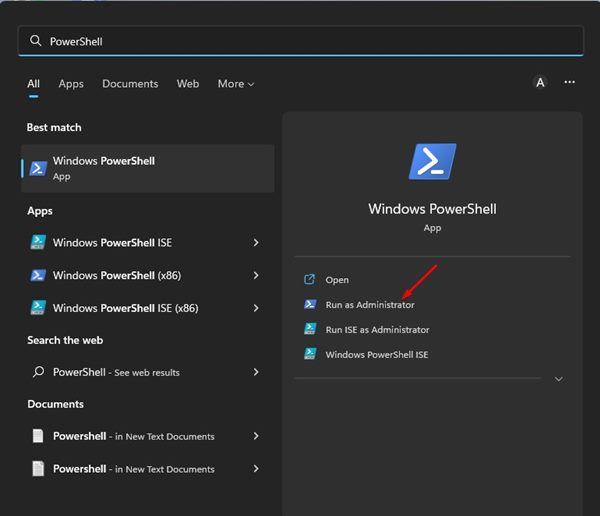
2. Copy and paste the command given below and press Enter.
Get-AppxPackage *windows.immersivecontrolpanel* | Reset-AppxPackage
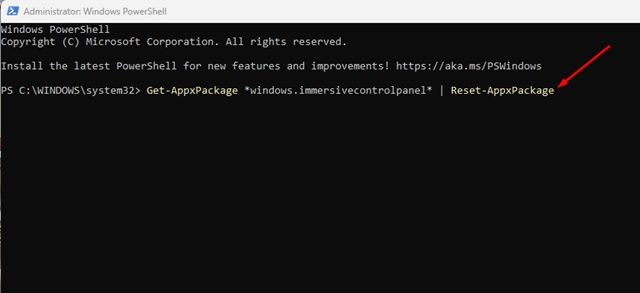
3. Then, close the command prompt and restart your computer.
These are the four best ways to fix the Windows 11 Settings app crashes when selecting Location, Camera, or Microphone. If you need more help with this topic, let us know in the comments.

