

Last Updated on November 5, 2026 by Larious
Knowing the version number of installed apps or programs can be helpful in multiple ways. For example, you will be able to install updates manually; you will be able to raise questions in the support forum, and more.
Therefore, in this article, we share the steps to view the version number of installed apps & programs in Windows 11.
Table of Contents
Know Version Number of Apps & Programs via Settings
We will use Windows 11’s Settings app to view the version number of apps and programs in this method.
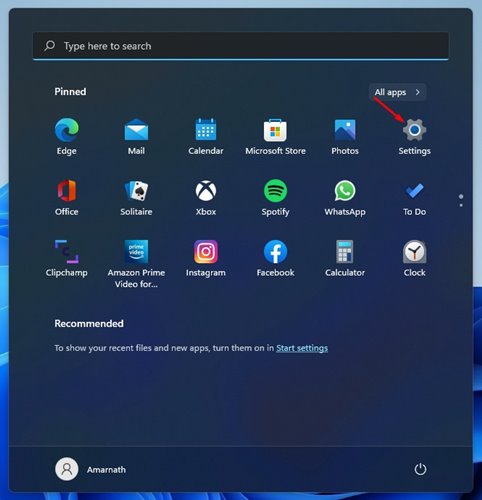
1. Click on the Windows 11 Start button and select Settings.
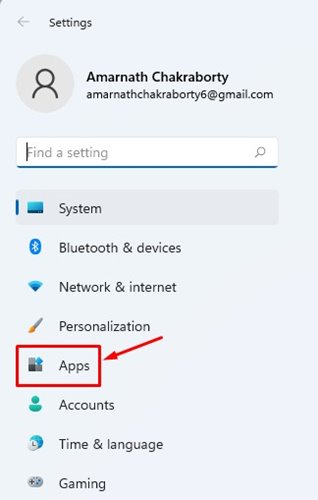
2. In the Settings app, click on the Apps option as shown below.
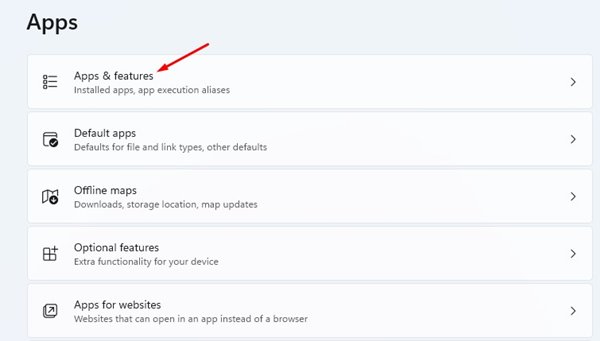
3. In Apps, click on the Apps & features option, as shown in the screenshot below.
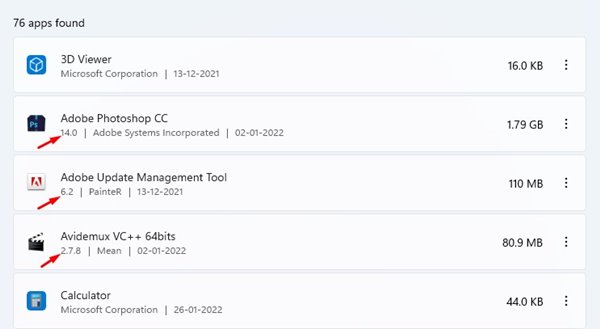
4. You will see a list of all apps & programs installed on your system.
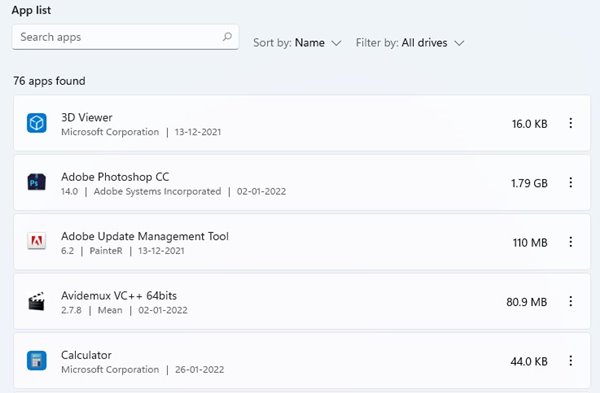
5. The apps will list the version number just below the name.
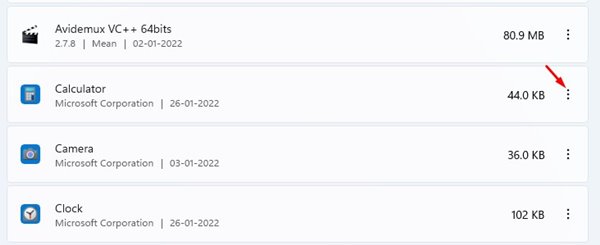
6. For Microsoft Store apps, click on the three dots as shown below.
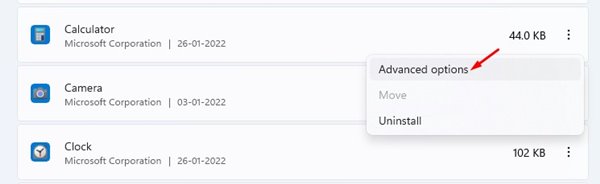
7. From the list of options, select Advanced options.
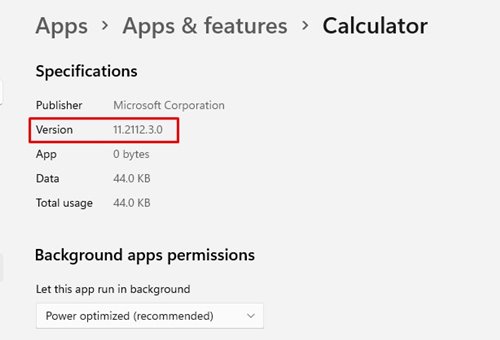
8. The next screen will show you the version number of the Microsoft Store apps.
Other Way to Know the Version Number?
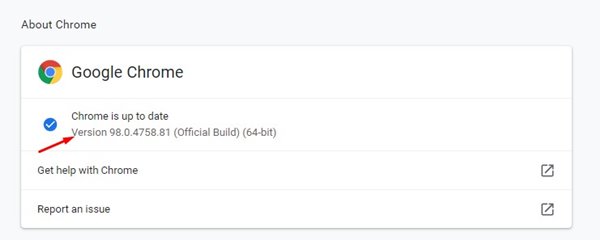
You don’t really need to go through the Settings app to know the version of the apps you are using. You can easily find out the program’s version number within the program.
Open the program and go to Help > About > Check for Update. The option to know the version number might vary depending on the program you are using, but it’s usually available in the About section.
Viewing the version number of installed apps & programs is pretty easy, especially on the Windows 11 operating system. I hope this article helped you! Please share it with your friends as well. If you have any doubts related to this, let us know in the comment box below.

